Late last year I wrote about integrating my SigEnergy SigenStor into Home Assistant using Modbus. That post was all about reading. 250+ entities, the energy dashboard, a 1602 LCD on my desk cycling through battery state of charge and PV power. Nearly a year on, 40kWh of storage and 14kw of panels on the roof, I have yet to intentionally pull from the grid, but the battery has been doing exactly one thing all that time, self consumption. Charge from the sun, power the house, repeat.
That is fine, but it leaves money on the table. My retailer has a time of use tariff with a feed-in window between 5pm and 9pm that pays 25.5c/kWh. Outside of that window feed-in is 0.5c/kWh. Yes, half a cent. Peak import between 3pm and 9pm costs 42.6c/kWh, off peak just under 22c/kWh. So the economics are pretty clear, any solar I export at midday is worth next to nothing, but every kWh I can push out of the battery between 5pm and 9pm is worth 50x that. With a 40kWh battery I can export at the full 5kW grid export limit for the whole 4 hour window and still have plenty left to get through the night.
To do that Home Assistant needs to be able to tell the SigenStor what to do, not just listen to it. That is what SigEnergy calls Remote EMS. This post covers how to enable Remote EMS on a SigenStor and drive it from Home Assistant, then once the core is explained, the value adds I have layered on top. Weather driven evening discharge, a safety watchdog, a winter mode and a couple of gotchas that cost me a day of curtailed solar.
This post assumes you have already followed the first post. Modbus TCP is enabled on your SigenStor (installer access required) and the Sigenergy ESS HACS integration is installed and reporting entities. If you can not telnet to your inverter on TCP 502, stop and go back to that post first.
What Is Remote EMS
EMS stands for Energy Management System. Out of the box the SigenStor runs its own EMS, the logic in the Sigenergy app that decides when to charge, when to discharge and when to sit idle, based on the mode you picked in the app (self consumption, TOU and so on). Remote EMS is Sigenergy handing that decision making over to an external controller via Modbus. Flip it on and the plant stops thinking for itself and waits to be told what to do.
In Modbus terms it is two holding registers on the plant (slave ID 247). Register 40029 enables or disables Remote EMS and register 40031 sets the control mode. The Sigenergy ESS integration exposes both as entities, a switch and a select, so you never have to touch a raw register, but it helps to know what is underneath when you are debugging.
| Mode | Register value | What it actually does |
|---|---|---|
| PCS Remote Control | 0 | Power on default. Battery idles and waits for power set points. House imports from the grid. |
| Standby | 1 | Battery idles. House imports from the grid. |
| Maximum Self Consumption | 2 | Normal behaviour. Solar to house, surplus to battery, battery to house at night. |
| Command Charging (Grid First) | 3 | Charge the battery from the grid. I never use this. |
| Command Charging (PV First) | 4 | Charge the battery from PV, top up from grid. |
| Command Discharging (PV First) | 5 | Export PV first, then battery. |
| Command Discharging (ESS First) | 6 | Export from the battery at the max discharging limit. This is my 5pm to 9pm mode. |
The important bit, and the thing that caught me out, is that the first two modes make the battery do nothing. The first time I enabled Remote EMS in the Sigenergy app, before Home Assistant was able to write to the plant, the mode landed on PCS Remote Control and the house started importing from the grid with a 98% battery sitting right there in the garage. Remote EMS means remote, if nothing is driving it, nothing happens. Keep that in mind, I come back to it in the watchdog automation.
Step 1 – Enabling Remote EMS On SigEnergy
There are two ways to turn Remote EMS on. The first is the Sigenergy app, under the same installer level parameter settings on the SigenStor device where you enabled Local Modbus TCP in the first post. The second is to let Home Assistant write register 40029 for you via the switch entity, which is what I do now. Both do the same thing.
My advice, do not enable it from the app until Home Assistant is ready to write. Enabling it from the app with nothing driving the plant is exactly how I ended up importing from the grid. Get Steps 2 and 3 done first, then flip the switch from Home Assistant so the mode sync automation puts the plant straight into Maximum Self Consumption.
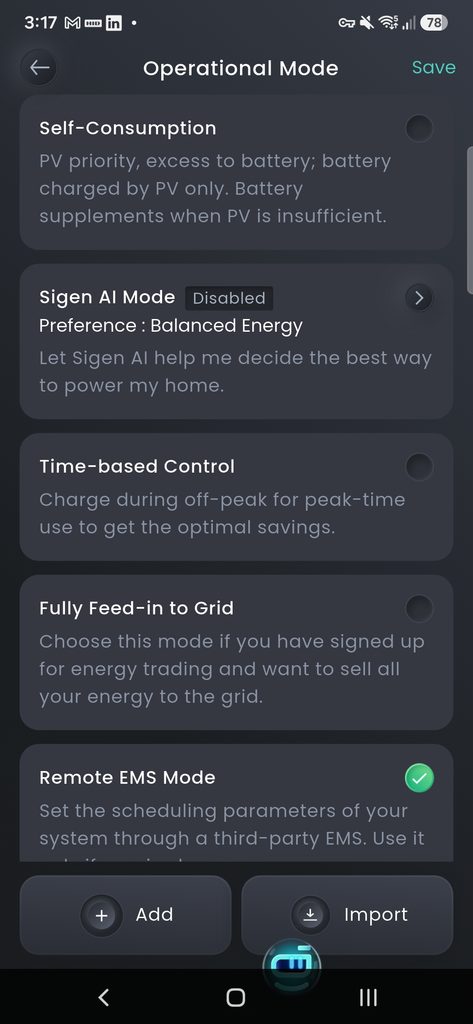
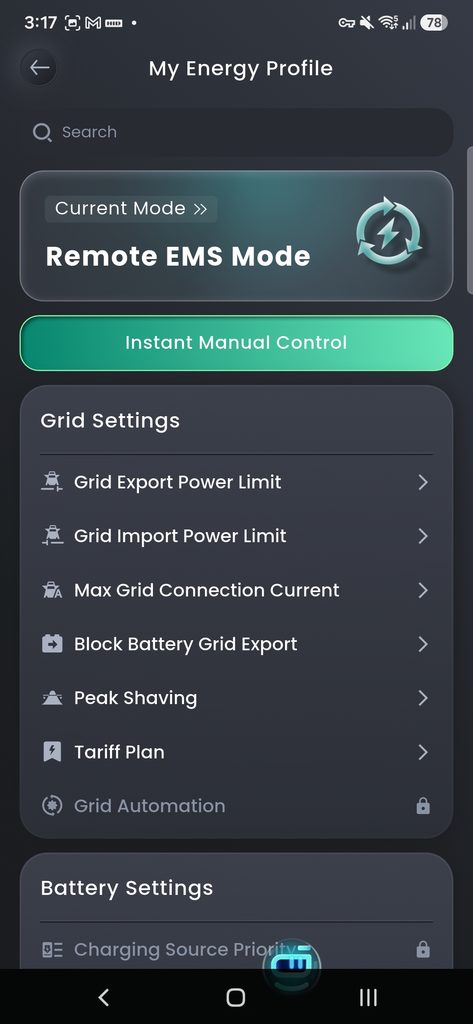
Exact menu labels vary with the app version, so if you do go the app route, look for Remote EMS or EMS control under the SigenStor device parameter settings. If your installer enabled Modbus for you, they can do this at the same time.
Step 2 – Turn Off Read-Only Mode In The Integration
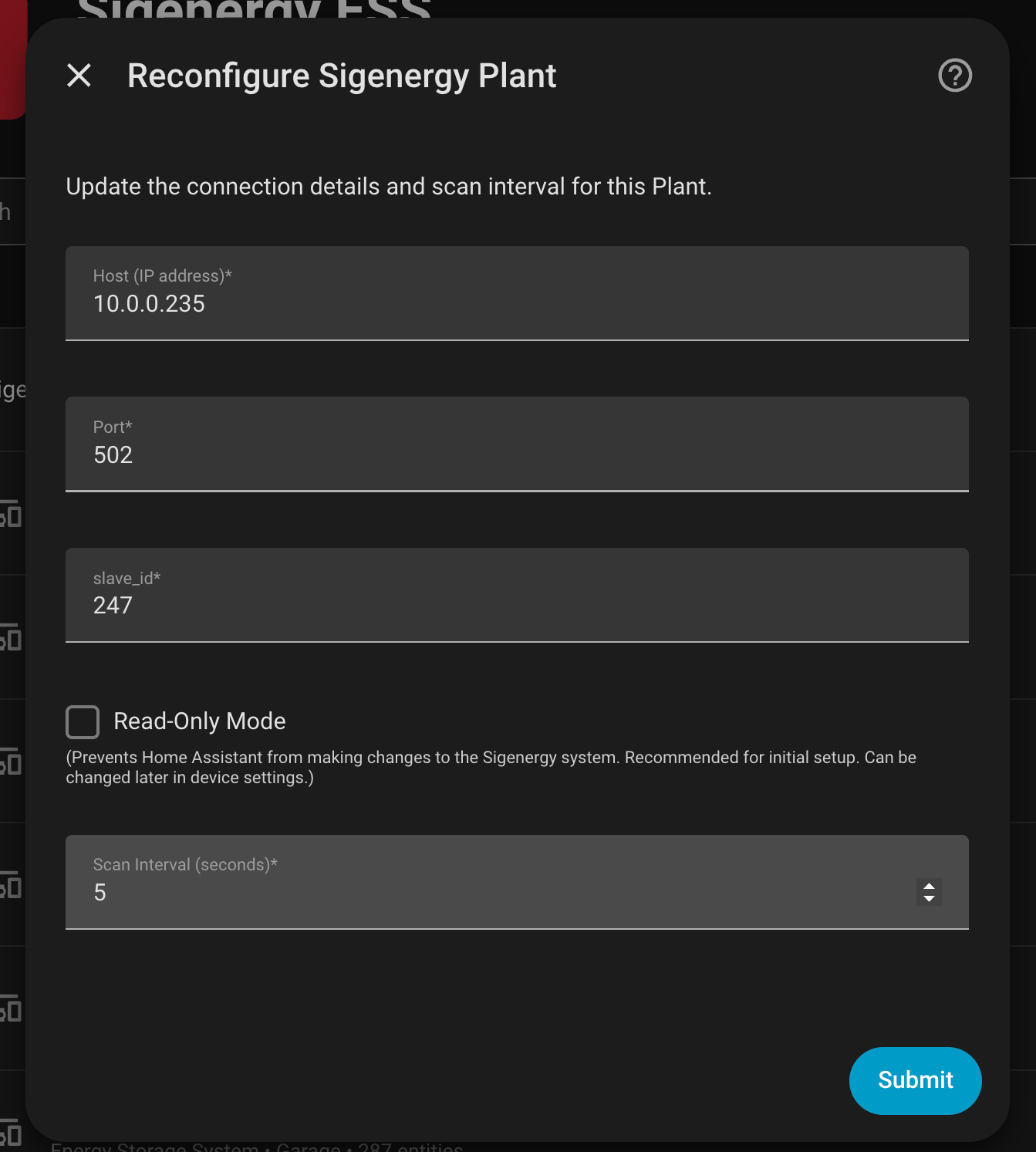
This is the one that got me. The Sigenergy ESS integration ships with a Read-Only Mode option and it defaults to on. In read-only mode every Modbus write is silently dropped. No error, no log entry, the switch just flicks back to off and the select snaps back to whatever it was. I spent far too long convinced Remote EMS was broken before I found the checkbox.
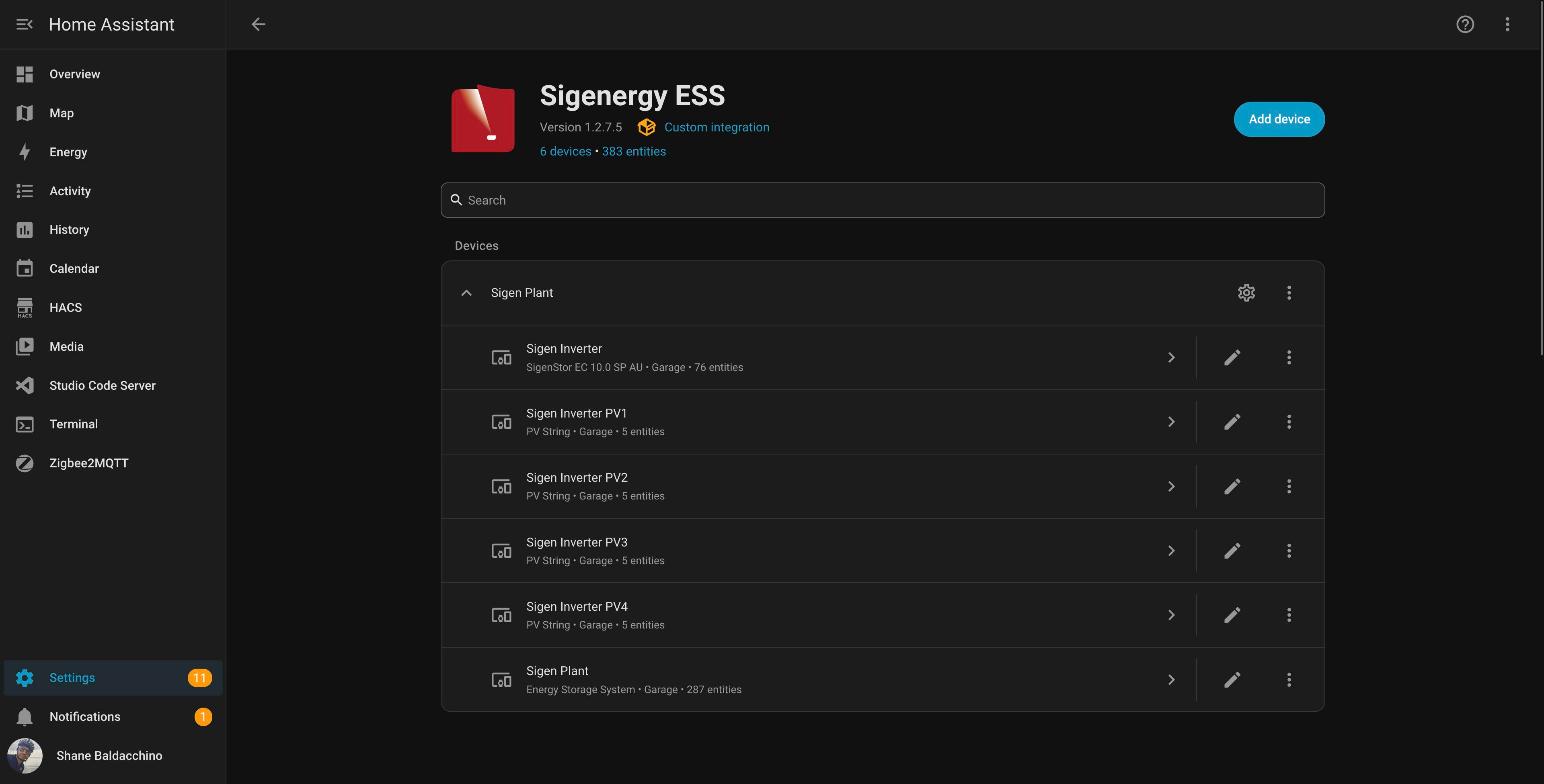
- In Home Assistant go to Settings > Devices & Services > Sigenergy ESS, then click the cog on the Sigen Plant entry.
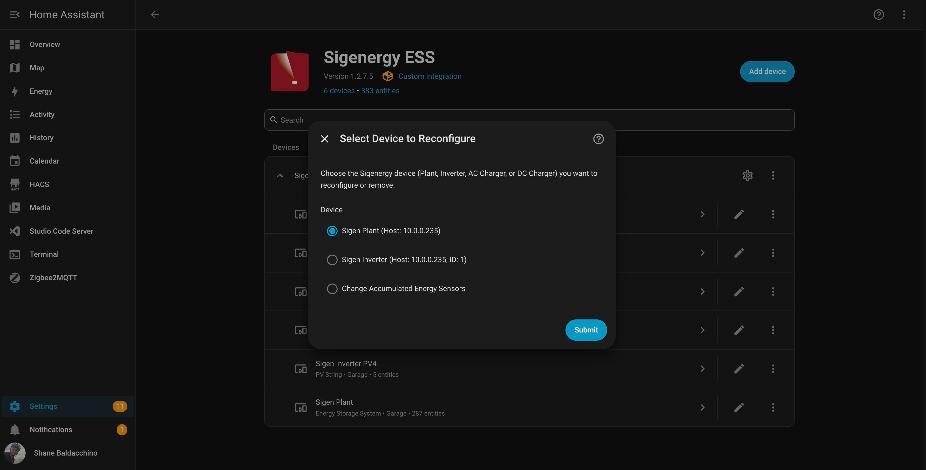
- Select the plant (not the inverter) and hit Submit.
- Untick Read-Only Mode and submit. Host, port and slave ID stay as they were.
The integration reloads itself and from that point on writes make it to the plant.
Step 3 – Enable The Control Entities
The integration creates the control entities but leaves most of them disabled, which is sensible, nobody wants 300 entities they did not ask for. Go to Settings > Devices & Services > Entities and search for sigen_plant_remote_ems. You want these two:
switch.sigen_plant_remote_ems_controled_by_home_assistant– register 40029, the Remote EMS on/off switch (yes, controled is spelt that way in the integration)select.sigen_plant_remote_ems_control_mode– register 40031, the mode select from the table above
Open each one, click the cog and turn on Enabled.
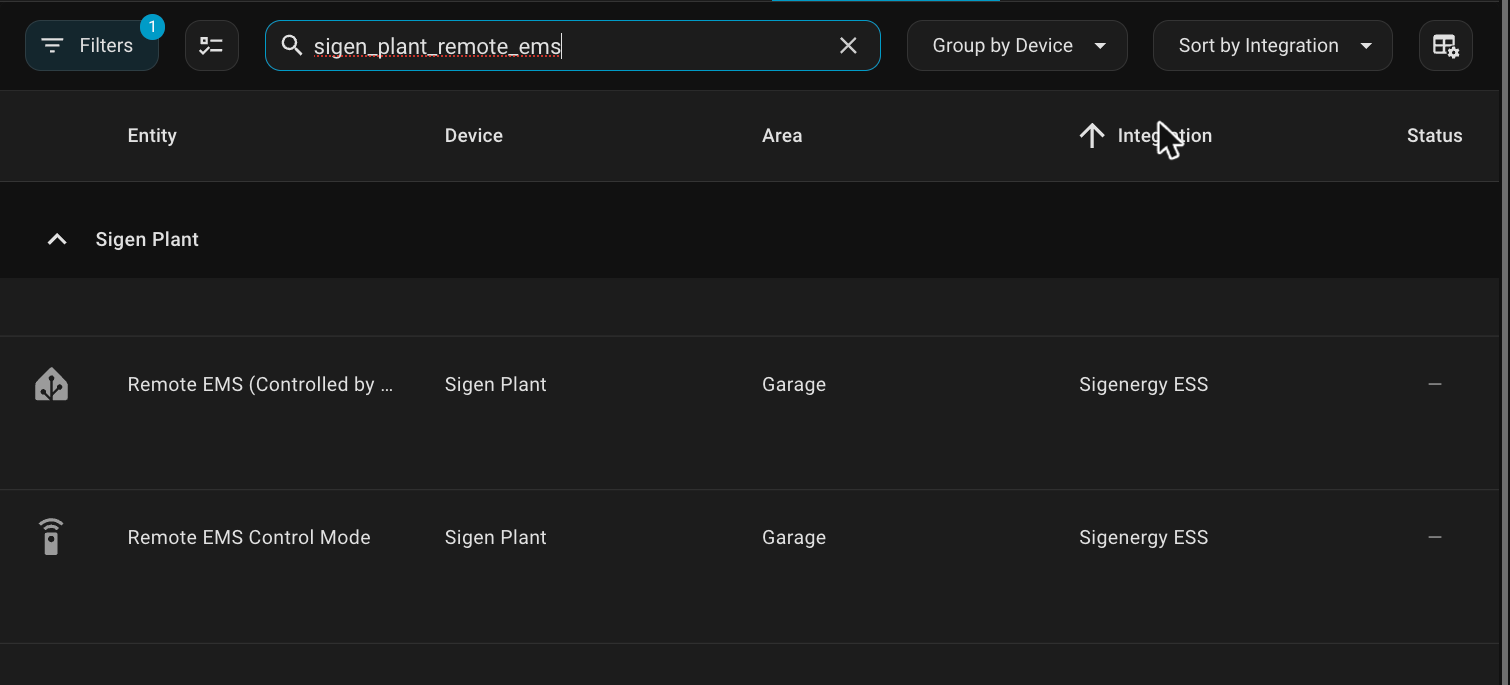
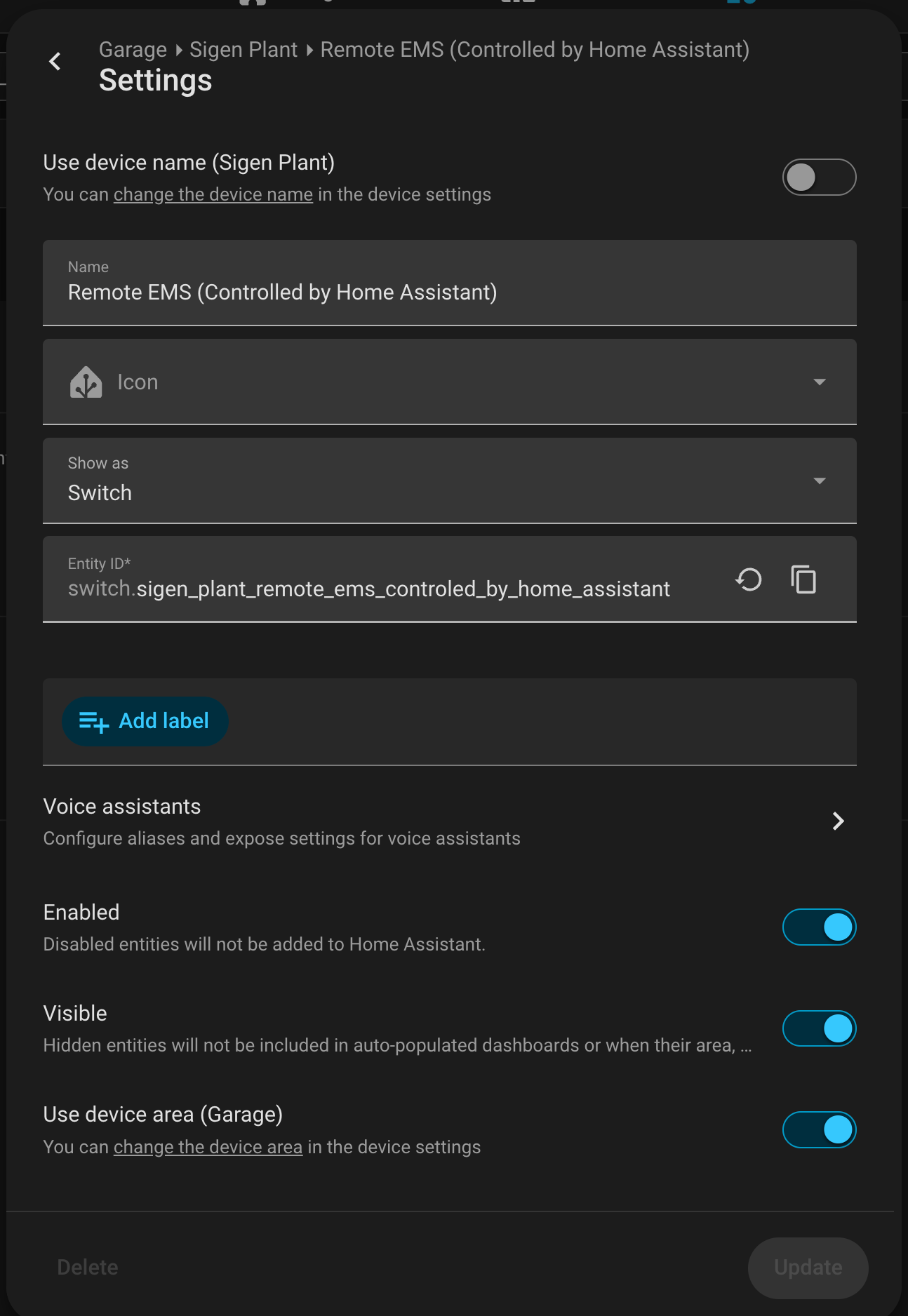
While you are in there, enable these as well. I use all of them in the value adds further down.
number.sigen_plant_ess_max_discharging_limit– cap on battery discharge power in kW, reads 4294967.295 when unlimitednumber.sigen_plant_ess_max_charging_limit– same for chargingnumber.sigen_plant_ess_backup_state_of_charge– the reserve the plant keeps for a blackoutnumber.sigen_plant_ess_charge_cut_off_state_of_charge– register 40047, the SoC the plant stops charging at. Read the gotcha section before you skip this onenumber.sigen_plant_ess_discharge_cut_off_state_of_charge– the SoC the plant stops discharging at
A word of warning on the entity search. If you filter on cut to find the cut-off entities and bulk enable, you will also pick up two grid code frequency numbers you really do not want to touch. Enable by exact name. Also ignore switch.sigen_inverter_remote_ems_dispatch if you see it, that register (41500) was removed in Modbus protocol v2.8 and the entity is a dead leftover.
Step 4 – Taking Control
Now the fun part. Turn on the Remote EMS switch. The select only becomes available while the switch is on, before that it sits at unavailable. Within one poll (5 seconds for me) the mode select will populate with whatever the plant is currently in, which on first enable will be PCS Remote Control. Change it to Maximum Self Consumption straight away and the battery goes back to behaving normally.
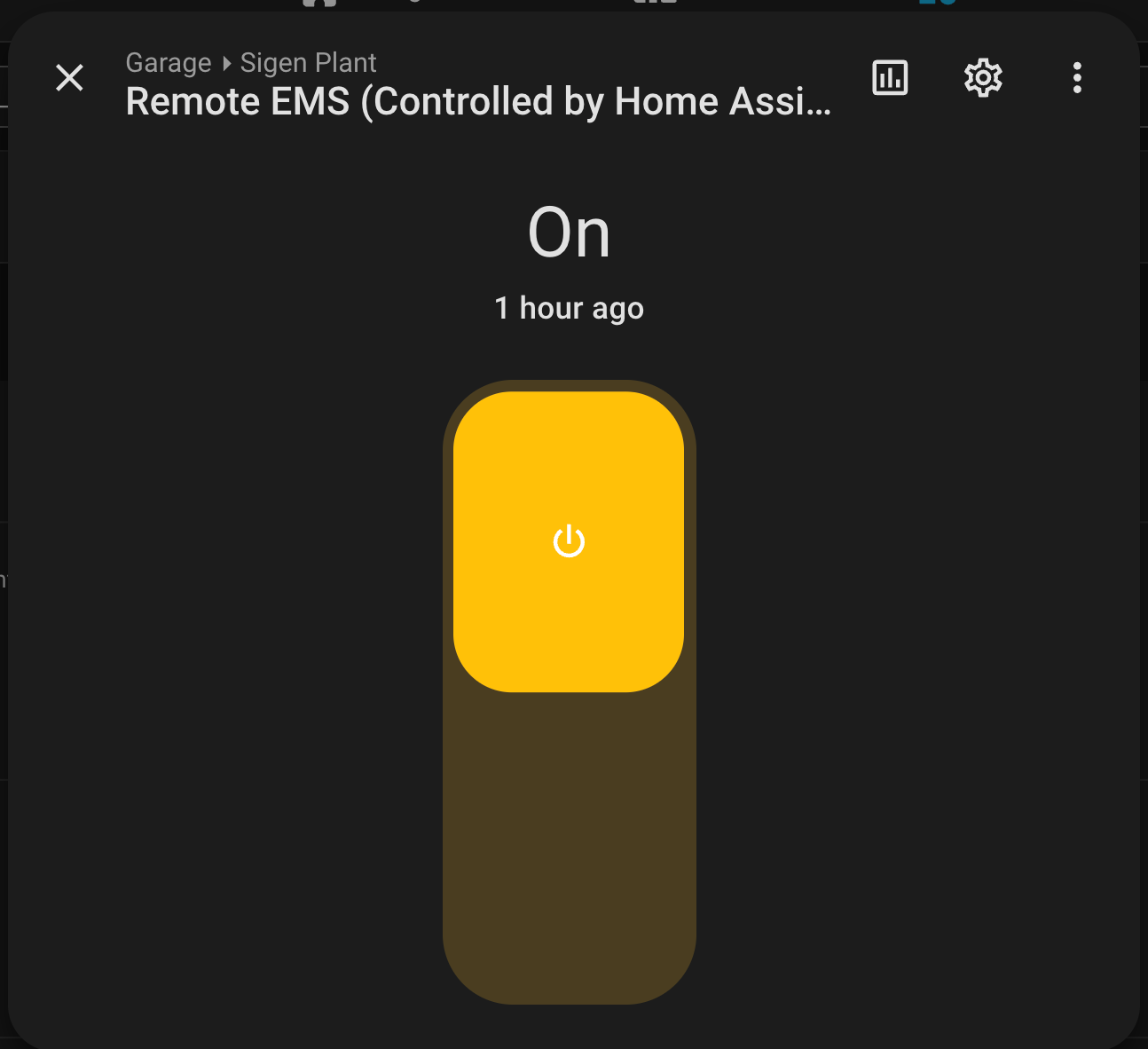
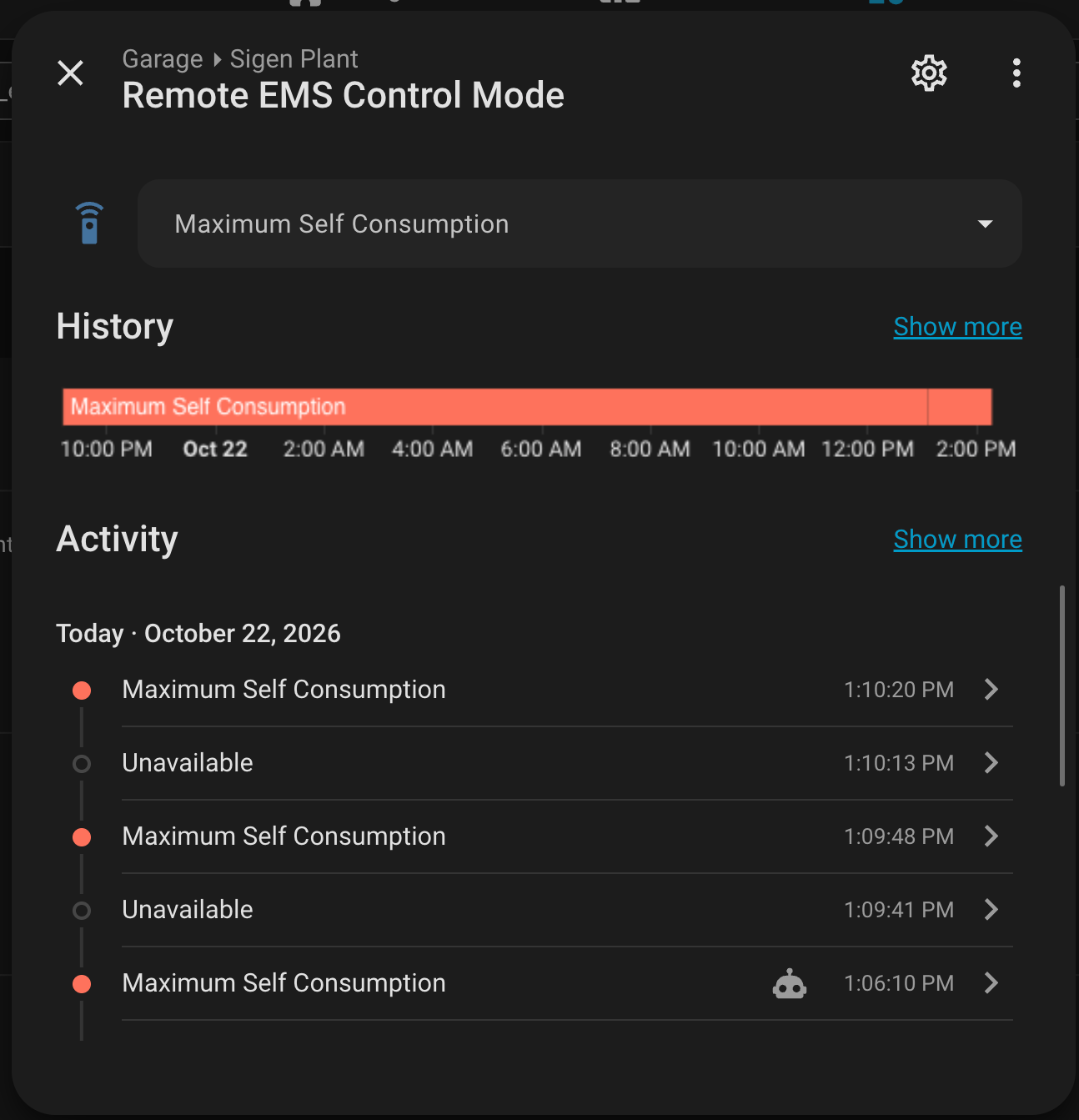
You can of course do this from Developer Tools > Actions, which is handy for testing before you wire anything in to an automation.
# Developer Tools > Actions
action: select.select_option
target:
  entity_id: select.sigen_plant_remote_ems_control_mode
data:
  option: Command Discharging (ESS First)
And to validate end to end, Developer Tools > Template gives you the state of play in one hit.
# Developer Tools > Template
Remote EMS: {{ states('switch.sigen_plant_remote_ems_controled_by_home_assistant') }}
Mode:       {{ states('select.sigen_plant_remote_ems_control_mode') }}
Battery:    {{ states('sensor.sigen_plant_battery_state_of_charge') }}%
Export:     {{ states('sensor.sigen_plant_grid_export_power') }} kW
Import:     {{ states('sensor.sigen_plant_grid_import_power') }} kW
Set the mode to Command Discharging (ESS First) with the sun down and watch sensor.sigen_plant_grid_export_power climb to your export limit (5kW in my case) within a few seconds. Set it back to Maximum Self Consumption and export drops to zero. That is the whole mechanism. Everything from here on is just Home Assistant deciding when to flip between those two modes.
One more thing. If you turn the Remote EMS switch off, control goes back to the Sigenergy app and whatever mode you had configured there. That is your escape hatch if an automation ever does something silly, and it is worth knowing it exists before you need it.
Value Add 1 – A Force Discharge Toggle Instead Of A Mode Select
I did not want automations, dashboards and family members poking at a 9 option select where two of the options make the house import from the grid and one charges the battery from the grid at peak rates. So the first thing I did was abstract it behind a single input boolean, Battery Force Discharge. On means Command Discharging (ESS First), off means Maximum Self Consumption. Nothing else is reachable.
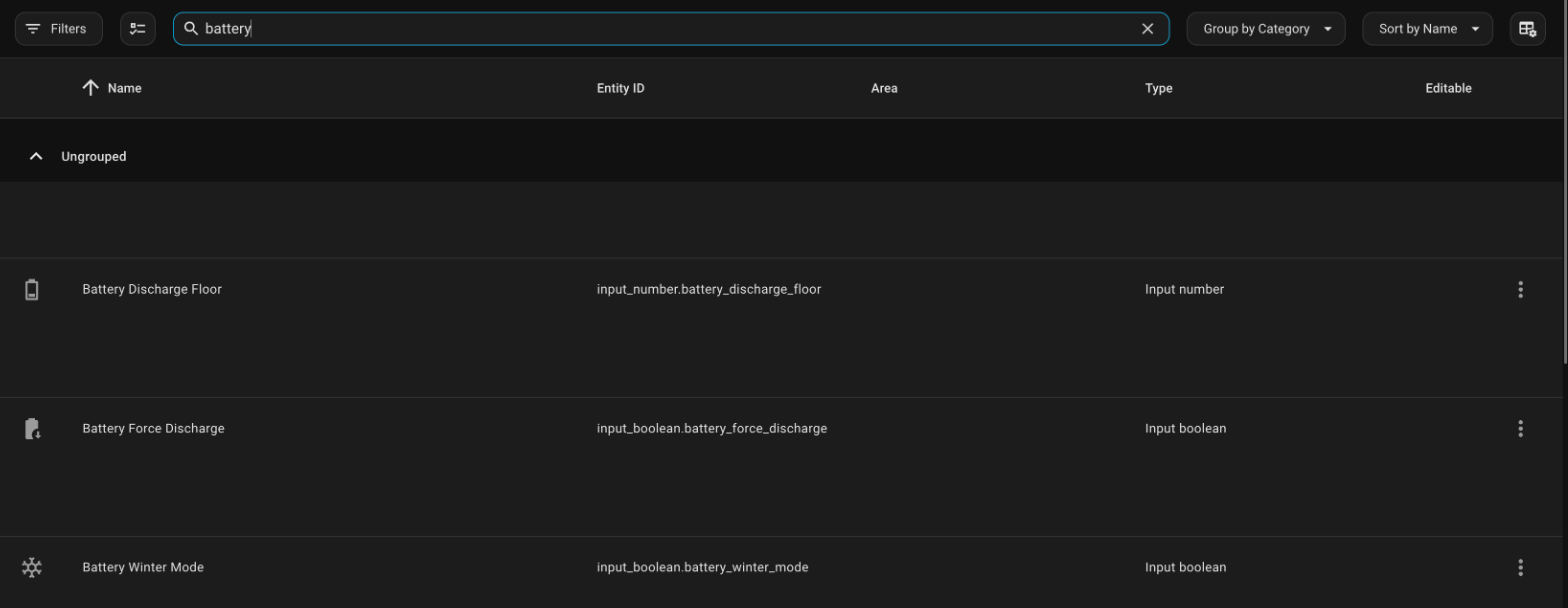
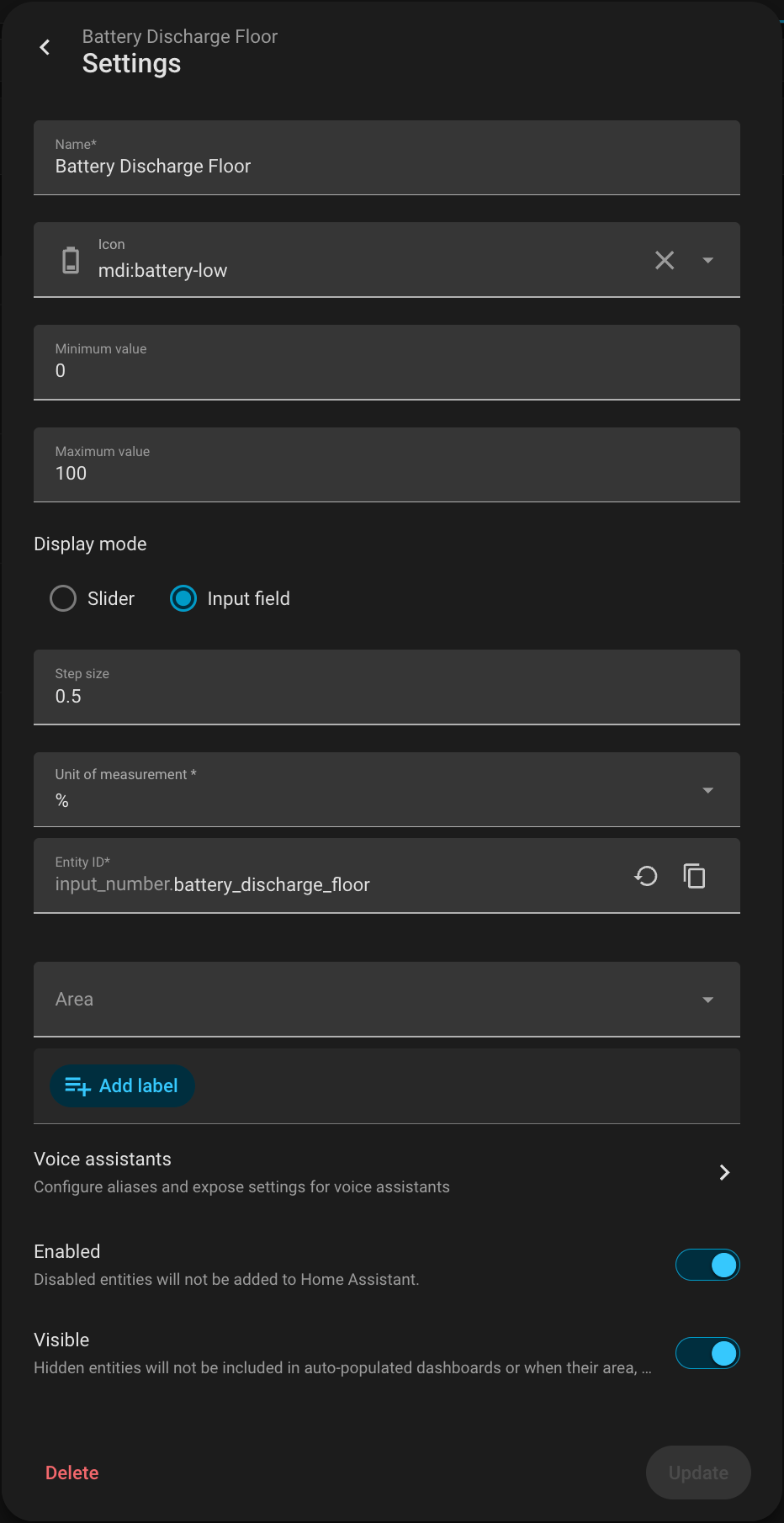
Three helpers do the heavy lifting. A toggle for force discharge, a number for how low the battery is allowed to go, and a winter mode toggle I will get to.
# configuration.yaml (or create these via Settings > Devices & Services > Helpers)
input_boolean:
  battery_force_discharge:
    name: Battery Force Discharge
    icon: mdi:battery-arrow-down
  battery_winter_mode:
    name: Battery Winter Mode
    icon: mdi:snowflake

input_number:
  battery_discharge_floor:
    name: Battery Discharge Floor
    min: 0
    max: 100
    step: 0.5
    initial: 62.5
    mode: box
    unit_of_measurement: "%"
    icon: mdi:battery-low
Value Add 2 – The Mode Sync Watchdog
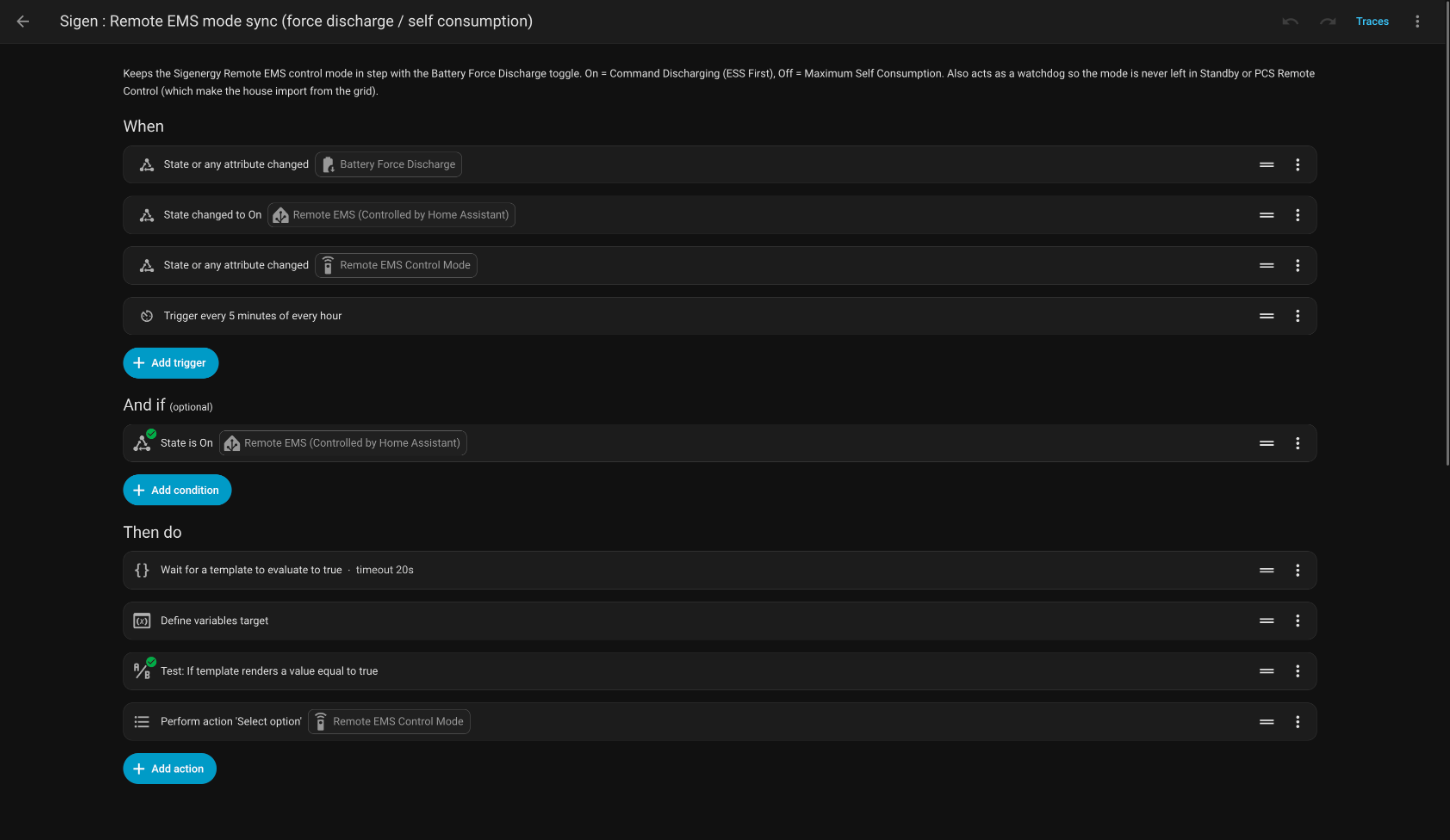
This automation is the glue between the toggle and the plant and it is the most important one in the set. It does two jobs. First, whenever the toggle changes it writes the matching mode to the select. Second, it re-evaluates every 5 minutes and any time the select changes on its own, so if the plant ever ends up in Standby or PCS Remote Control (power cycle, firmware update, me fat fingering the app) it is dragged back to the correct mode within 5 minutes.
A couple of details worth calling out. The automation only acts while the Remote EMS switch is on, so turning the switch off really does hand control back to the app. The wait template is there because the select goes briefly unavailable while the integration polls, and writing to an unavailable select throws an error. And it only calls select.select_option when the mode actually needs to change, no point hammering Modbus every 5 minutes for nothing.
alias: "Sigen : Remote EMS mode sync (force discharge / self consumption)"
description: >-
  Keeps the Sigenergy Remote EMS control mode in step with the Battery Force
  Discharge toggle. On = Command Discharging (ESS First), Off = Maximum Self
  Consumption. Also acts as a watchdog so the mode is never left in Standby or
  PCS Remote Control (which make the house import from the grid).
triggers:
  - trigger: state
    entity_id: input_boolean.battery_force_discharge
  - trigger: state
    entity_id: switch.sigen_plant_remote_ems_controled_by_home_assistant
    to: "on"
  - trigger: state
    entity_id: select.sigen_plant_remote_ems_control_mode
  - trigger: time_pattern
    minutes: "/5"
conditions:
  - condition: state
    entity_id: switch.sigen_plant_remote_ems_controled_by_home_assistant
    state: "on"
actions:
  # The select goes briefly unavailable while the integration polls, so wait for it
  - wait_template: >-
      {{ states('select.sigen_plant_remote_ems_control_mode') not in ['unavailable','unknown'] }}
    timeout: "00:00:20"
    continue_on_timeout: false
  - variables:
      target: >-
        {{ 'Command Discharging (ESS First)'
           if is_state('input_boolean.battery_force_discharge','on')
           else 'Maximum Self Consumption' }}
  # Only write to Modbus when the mode actually needs to change
  - condition: template
    value_template: "{{ not is_state('select.sigen_plant_remote_ems_control_mode', target) }}"
  - action: select.select_option
    target:
      entity_id: select.sigen_plant_remote_ems_control_mode
    data:
      option: "{{ target }}"
mode: queued
max: 3
Value Add 3 – Weather Driven Evening Discharge
Here is where the money is. At 5pm, the start of the 25.5c feed-in window, this automation decides how much of the battery to sell. The trick is the floor. Export too much and I am importing at 22c at 3am, which wipes out the gain. Export too little and I have 40kWh of battery sitting at 90% when the sun comes up and the panels get curtailed.
The floor depends on tomorrow. I pull the daily forecast from the Bureau of Meteorology integration (weather.lyndhurst in my case) and tier it. The BoM daily forecast only gives a condition and a max temperature, no cloud percentage, so the tiers are deliberately simple:
- Tomorrow sunny and max 23C or less – mild day, HVAC will not be working hard, the battery will refill easily. Discharge to 52.5%.
- Anything else – discharge to 62.5%.
- Tomorrow max under 15C, no forecast available, or Winter Mode on – no discharge at all, floor set to 100%. A cold day means heating overnight and poor generation tomorrow, keep every kWh.
It writes the floor into the input number, logs the decision and the reason to the logbook (I want to be able to see why it did what it did when I look the next morning), then turns the force discharge toggle on if the battery is above the floor. The mode sync automation takes it from there.
alias: "Sigen : Evening discharge start (5pm)"
description: >-
  At 5pm works out the SoC floor from tomorrow's BoM forecast and stores it in
  Battery Discharge Floor, then turns on Battery Force Discharge if the battery
  is above the floor. Tiers: sunny and max <= 23C -> 52.5%; otherwise -> 62.5%;
  max < 15C or Battery Winter Mode on -> no discharge (floor 100%).
triggers:
  - trigger: time
    at: "17:00:00"
conditions: []
actions:
  - action: weather.get_forecasts
    target:
      entity_id: weather.lyndhurst
    data:
      type: daily
    response_variable: fc
  - variables:
      tomorrow_date: "{{ (now() + timedelta(days=1)).strftime('%Y-%m-%d') }}"
      tomorrow: >-
        {{ (fc['weather.lyndhurst'].forecast | selectattr('datetime','search', tomorrow_date) | list | first)
           if (fc['weather.lyndhurst'].forecast | selectattr('datetime','search', tomorrow_date) | list | count) > 0
           else (fc['weather.lyndhurst'].forecast[1] if (fc['weather.lyndhurst'].forecast | count) > 1 else {}) }}
      tmax: "{{ tomorrow.temperature | default(none) }}"
      cond: "{{ tomorrow.condition | default('unknown') }}"
      winter: >-
        {{ is_state('input_boolean.battery_winter_mode','on')
           or (tmax is none)
           or (tmax | float(99)) < 15 }}
      sunny_and_mild: "{{ cond == 'sunny' and (tmax | float(99)) <= 23 }}"
      floor: "{{ 100 if winter else (52.5 if sunny_and_mild else 62.5) }}"
      reason: >-
        {{ 'Winter Mode on' if is_state('input_boolean.battery_winter_mode','on')
           else ('no forecast' if tmax is none
           else ('cold tomorrow (<15C)' if (tmax | float(99)) < 15
           else ('sunny and mild' if sunny_and_mild else 'default'))) }}
  - action: input_number.set_value
    target:
      entity_id: input_number.battery_discharge_floor
    data:
      value: "{{ floor }}"
  # Leave a breadcrumb in the logbook so I can see why it did what it did
  - action: logbook.log
    data:
      name: Sigen evening discharge
      entity_id: input_boolean.battery_force_discharge
      message: >-
        Tomorrow {{ cond }} max {{ tmax }}C -> {{ reason }}, floor {{ floor }}%,
        SoC {{ states('sensor.sigen_plant_battery_state_of_charge') }}%{{ ' (no discharge)' if winter else '' }}
  - condition: template
    value_template: "{{ not winter }}"
  - condition: numeric_state
    entity_id: sensor.sigen_plant_battery_state_of_charge
    above: input_number.battery_discharge_floor
  - action: input_boolean.turn_on
    target:
      entity_id: input_boolean.battery_force_discharge
mode: single
If you are not in Australia, swap the weather entity and the condition strings for whatever your weather integration returns. The forecast lookup is a bit defensive because weather.get_forecasts does not guarantee that index 1 is tomorrow, so it searches by date first and falls back to the second entry.
Value Add 4 – Stopping At 9pm Or At The Floor
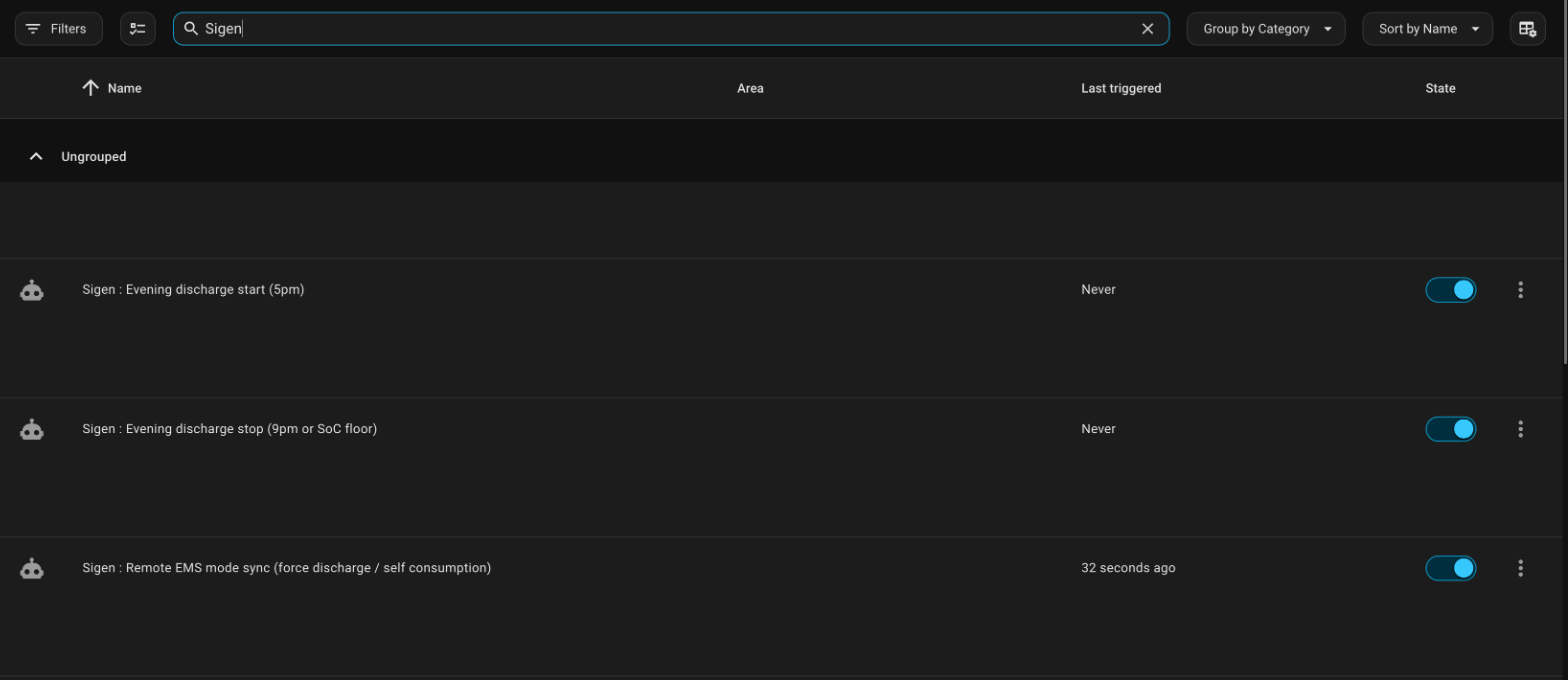
The stop automation is trivial by comparison. Two triggers, 9pm when the feed-in rate drops back to half a cent, or the battery state of charge crossing below the floor, whichever comes first. It just turns the toggle off and the watchdog puts the plant back into Maximum Self Consumption.
alias: "Sigen : Evening discharge stop (9pm or SoC floor)"
description: >-
  Turns off Battery Force Discharge at 9pm, or earlier when SoC drops below the
  Battery Discharge Floor. The mode sync automation then returns the system to
  Maximum Self Consumption.
triggers:
  - trigger: time
    at: "21:00:00"
  - trigger: numeric_state
    entity_id: sensor.sigen_plant_battery_state_of_charge
    below: input_number.battery_discharge_floor
conditions:
  - condition: state
    entity_id: input_boolean.battery_force_discharge
    state: "on"
actions:
  - action: input_boolean.turn_off
    target:
      entity_id: input_boolean.battery_force_discharge
mode: single
Value Add 5 – Winter Mode
The forecast handles the day to day, but in the middle of winter I do not want to export at all. Short days, low sun angle, HVAC running overnight. Rather than fiddle with thresholds every season there is a Winter Mode toggle on the dashboard. When it is on, the 5pm automation sets the floor to 100% and does nothing. One tap in May, one tap in September. The forecast tiers are still there if a cold snap hits outside of winter.
Value Add 6 – The Charge Cut-Off Gotcha
The day after Remote EMS went live I noticed the battery sitting at 80% at midday with the PV array curtailed and the house exporting at 0.5c. Not what I wanted. The Sigenergy app said the charge cut-off SoC was 98%, the plant said otherwise. Enabling the default-disabled number.sigen_plant_ess_charge_cut_off_state_of_charge entity showed holding register 40047 sitting at 80%.
I do not know whether enabling Remote EMS reset it or whether the app and the plant had drifted apart earlier, but writing 98 to that entity from Home Assistant had the battery charging again within seconds. If your battery ever plateaus at a round number below what the app says, check this register. This is also why I enabled the discharge cut-off entity, the two together are the real min and max of the battery regardless of what the app shows.
Both now live on my dashboard as Max Charge and Min Charge tiles so I can type a value in without opening the app. The battery is LFP so it is happy sitting at 100% if you want to go that far, the discharge floor matters more for longevity.
Value Add 7 – Dashboard
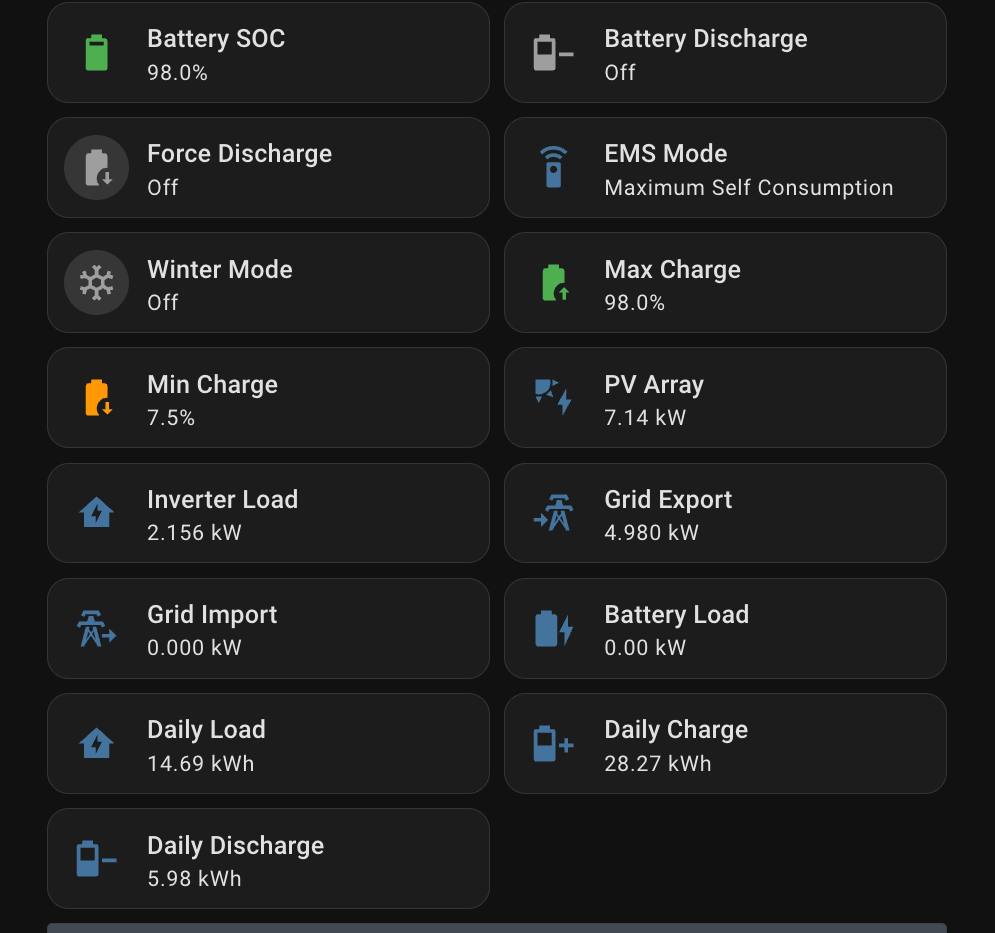
All of this ends up as a row of tile cards next to the Battery SOC tile on the main view. Force Discharge (red when on), EMS Mode so I can see what the plant is actually doing, Winter Mode, Max Charge and Min Charge. The tiles are deliberately the same size as their neighbours, tap the Force Discharge tile to toggle it, tap Max Charge to type a value.
# Tile cards on my Overview dashboard (Main view)
- type: tile
  entity: sensor.sigen_plant_battery_state_of_charge
  name: Battery SOC
  vertical: false
- type: tile
  entity: input_boolean.battery_force_discharge
  name: Force Discharge
  color: red
  tap_action:
    action: toggle
  icon_tap_action:
    action: toggle
- type: tile
  entity: select.sigen_plant_remote_ems_control_mode
  name: EMS Mode
- type: tile
  entity: input_boolean.battery_winter_mode
  name: Winter Mode
  color: light-blue
  tap_action:
    action: toggle
  icon_tap_action:
    action: toggle
- type: tile
  entity: number.sigen_plant_ess_charge_cut_off_state_of_charge
  name: Max Charge
  color: green
  icon: mdi:battery-arrow-up
- type: tile
  entity: number.sigen_plant_ess_discharge_cut_off_state_of_charge
  name: Min Charge
  color: orange
  icon: mdi:battery-arrow-down
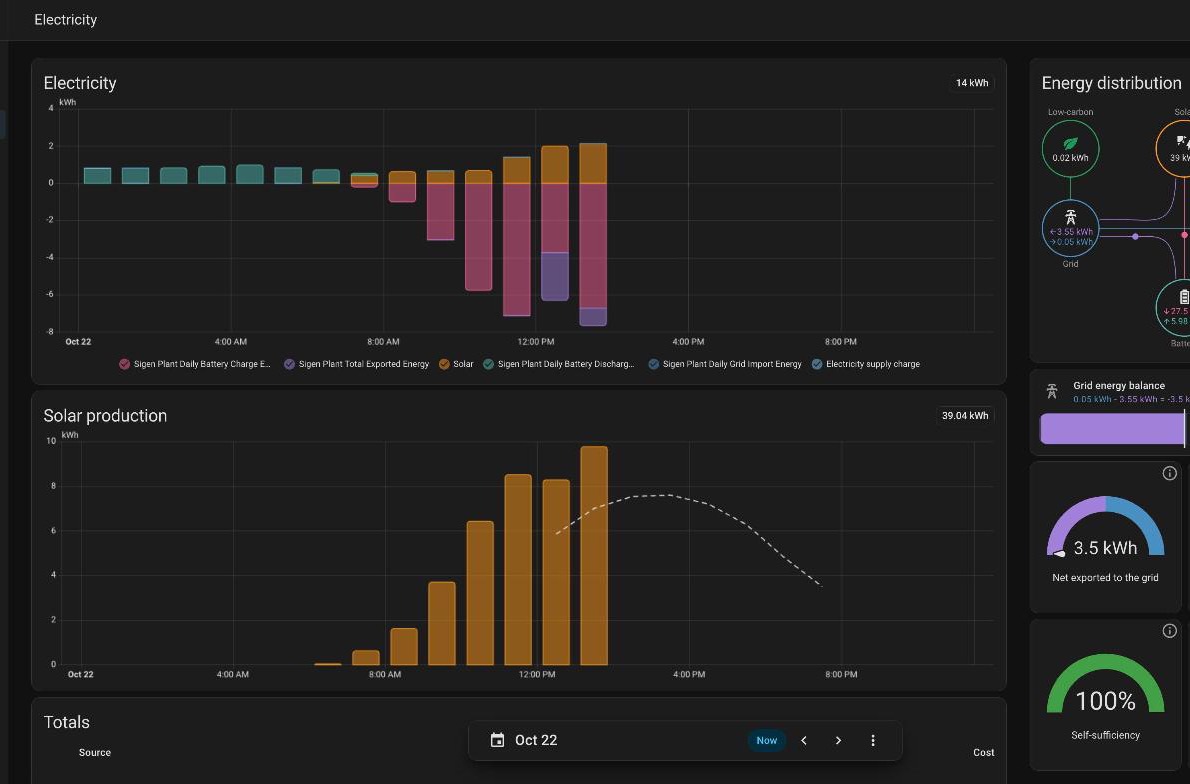
The result is the tile layout pictured at the top of this post. The energy dashboard from the first post keeps doing its thing too, now with a sizeable chunk of battery discharge going to the grid each evening rather than just the house.
Summary
Remote EMS turns the SigenStor from a thing you read into a thing you drive. The mechanics are simple, a switch and a select backed by two Modbus registers, but there are three things that will trip you up. The integration defaults to read-only and drops writes silently. The control entities are disabled by default. And an enabled Remote EMS with nothing driving it leaves the battery idle while the house imports from the grid.
Get past those and Home Assistant becomes your EMS. For me that is a weather aware evening export into a 25.5c feed-in window, a watchdog that makes sure the plant is never left idle, and a couple of tiles so the family can override it without opening the Sigenergy app. Same hardware, same Modbus connection as the first post, just now it listens as well as talks.
If you have a SigenStor connected to Home Assistant, enable Remote EMS and let your event driven house drive your battery too.
Thanks
Shane Baldacchino