I have been running WordPress in one form or another since 2003, which is hard to believe its 20+ years. Back then I was running a web hosting company. Since then I have hosted it for thousands of customers, I have stood on stage in front of a few thousand people and broken in to it live through a plugin to make a point, and today it serves this very blog my my garage. In a recent WordPress post I covered how I host WordPress, but in this blog post I will cover the other half, which is how do you keep WordPress secure? This is my approach and I am pretty happy with how I stand today and the minimal effort involved to keep my stack safe and sound.
And disclosure up front. I have been hacked in the past in various ways. All of these are opportunities to learn. I have dealt with
- Comment spam – Talking 50 000 comments over your posts, with links to other websites.
- Vulnerable plugins
- Brute Force Attacks to
wp-admin– The injected the Cloudfare javascript below.
This post will in a security speak, provide mitigation for each of the above and more. Buckle in and learn from my failures.
Below the video demonstrates how I was able to hack a WordPress installation via a vulnerable plugin with some cleverly crafted SQL (SQL Injection) through to DDOS via tools on Kali. The image shows how I got hacked, I was not monitoring failed logins and was brute forced.

Why WordPress?
WordPress powers around 43% of all websites on the internet. That popularity is a double edged sword because it makes it the most attacked CMS on the planet. The perception that WordPress is insecure is not what I have found. It is very rarely WordPress core that gets you if you keep it up to date. Core is patched fast and patched well, if you dont keep your versions up to date, thats an issue you need to solve.
But is the plugins. Every plugin you install is somebody else’s PHP running with full access to your database. The process isolation you could argue is an issue, but there is a very long tail of abandoned and slow to patch plugins out there. My site has 13 active plugins plus WooCommerce. That is 14 code bases out side of the core.
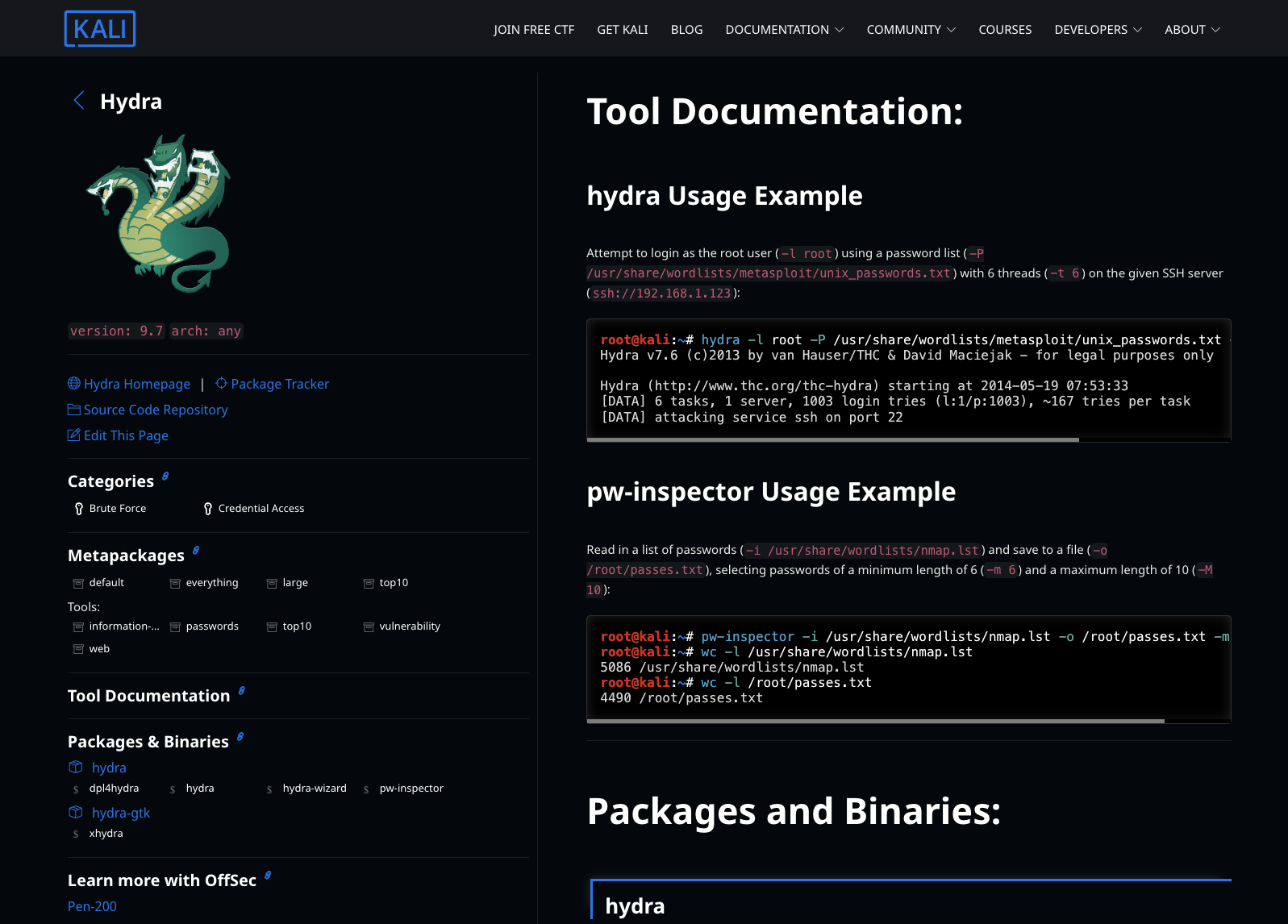
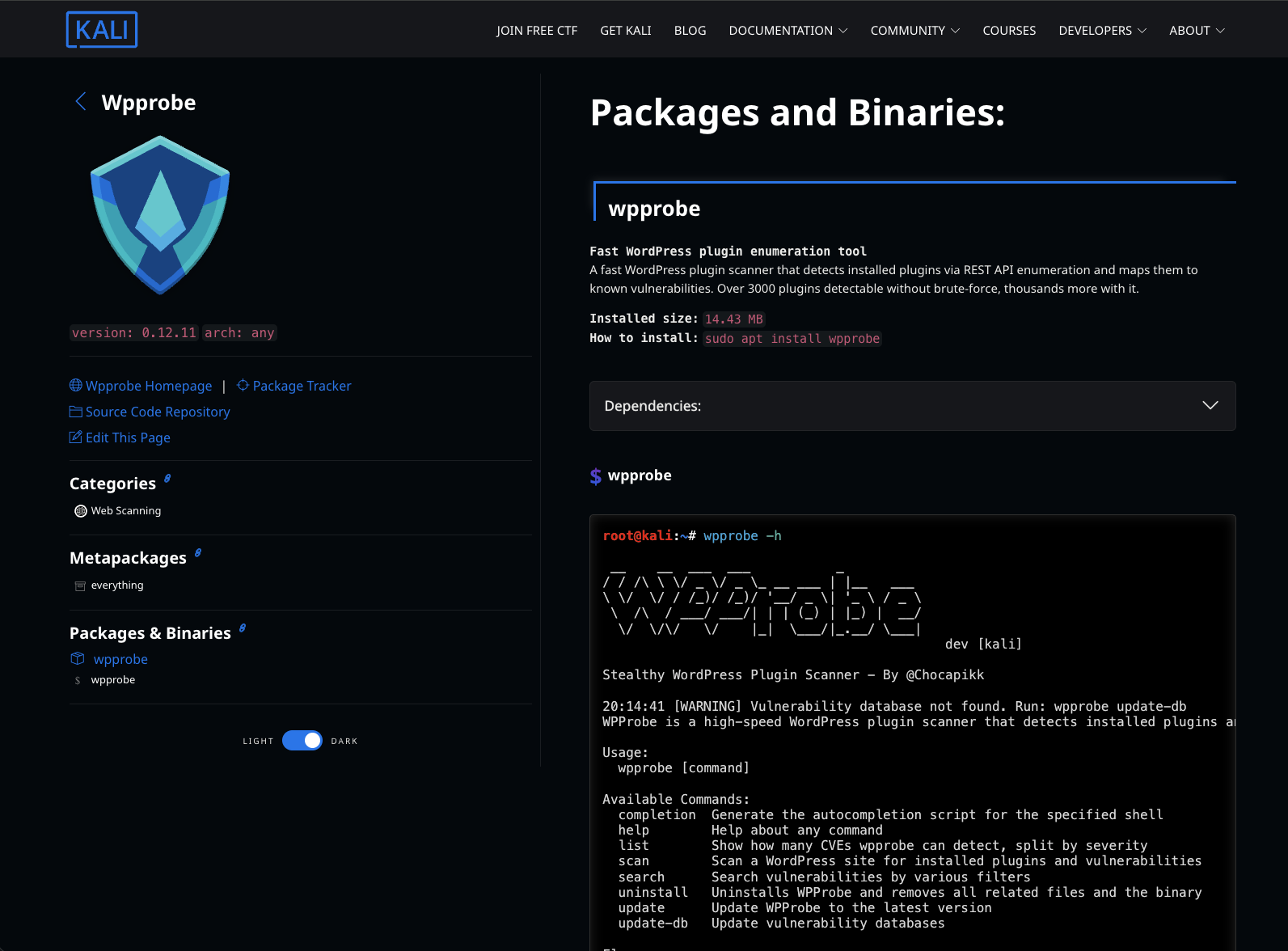
If you tail the access log of any WordPress site that has been on the internet for more than a day you will see what I see. A constant stream of requests to /wp-login.php and /xmlrpc.php from bots. This obviously automated and it never stops, Tools like Hyrda (used in the video above) and WPProbe sadly make breaking in to WordPress kind of easy if your stack is not up to date. This is because WordPress is popular and its valuable for people to
Security & hygiene is everything to me, I said as much in the hosting post when I explained why I moved off my Synology, so in this post I am going to walk you through the three layers I use to keep this blog secure. None of it is a product, none of it costs money, and all of it runs on the same Unraid host as the blog itself.
What I will cover in this post
- Knowing where I stand : Scanning with WPScan in Docker
- Putting WPScan on a schedule so the box emails me when something is wrong
- Reducing the attack surface : Locking down wp-admin to my LAN with Nginx Proxy Manager
- Getting in when I am not at home : WireGuard and a small Chrome trick
- Patching : Auto updating plugins and updating the stack with Docker Compose
- Summary
Scanning WordPress For Vulnerabilities
You know the saying, you cant fix what you can not measure. We need to know what is exposed and what is out of date, and for WordPress the tool for this is WPScan. Its been a around for a while now (I have used it for atleast 8 years)
WPScan is a WordPress specific security scanner. It fingerprints your WordPress version, your theme and every plugin it can detect, then cross references all of that against a maintained vulnerability database. It will also enumerate your users. You will need an API key for this to be useful. The vulnerability database is the value here, WPScan the company maintain it will link a known vulnerability to a CVE .
WPScan is a Ruby application which I have no plans to run without Docker so I leverage it as a Docker container. The container is pulled, it runs, it is removed and the host stays clean. Same pattern I use for the AWS CLI in my backup script.
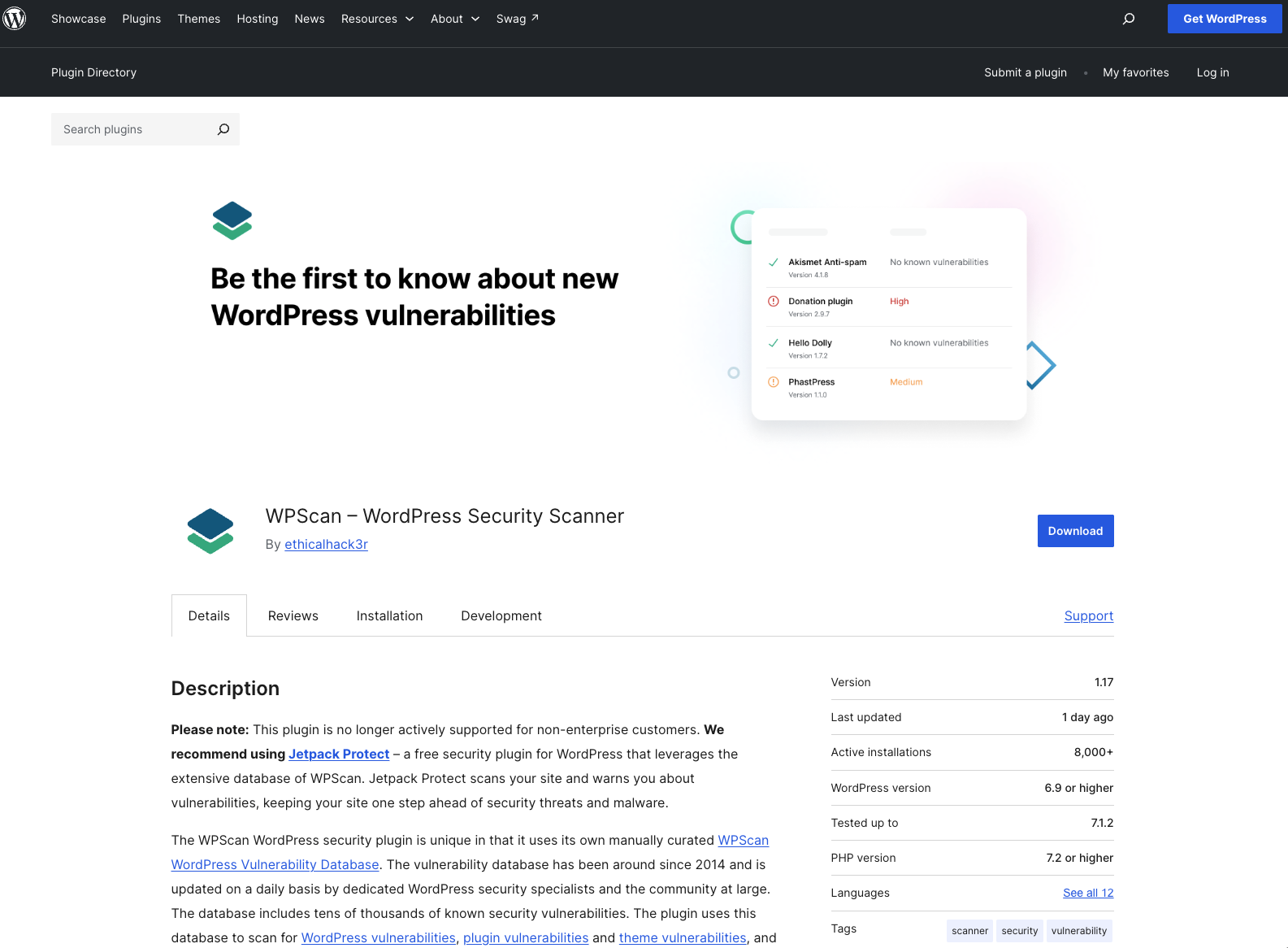
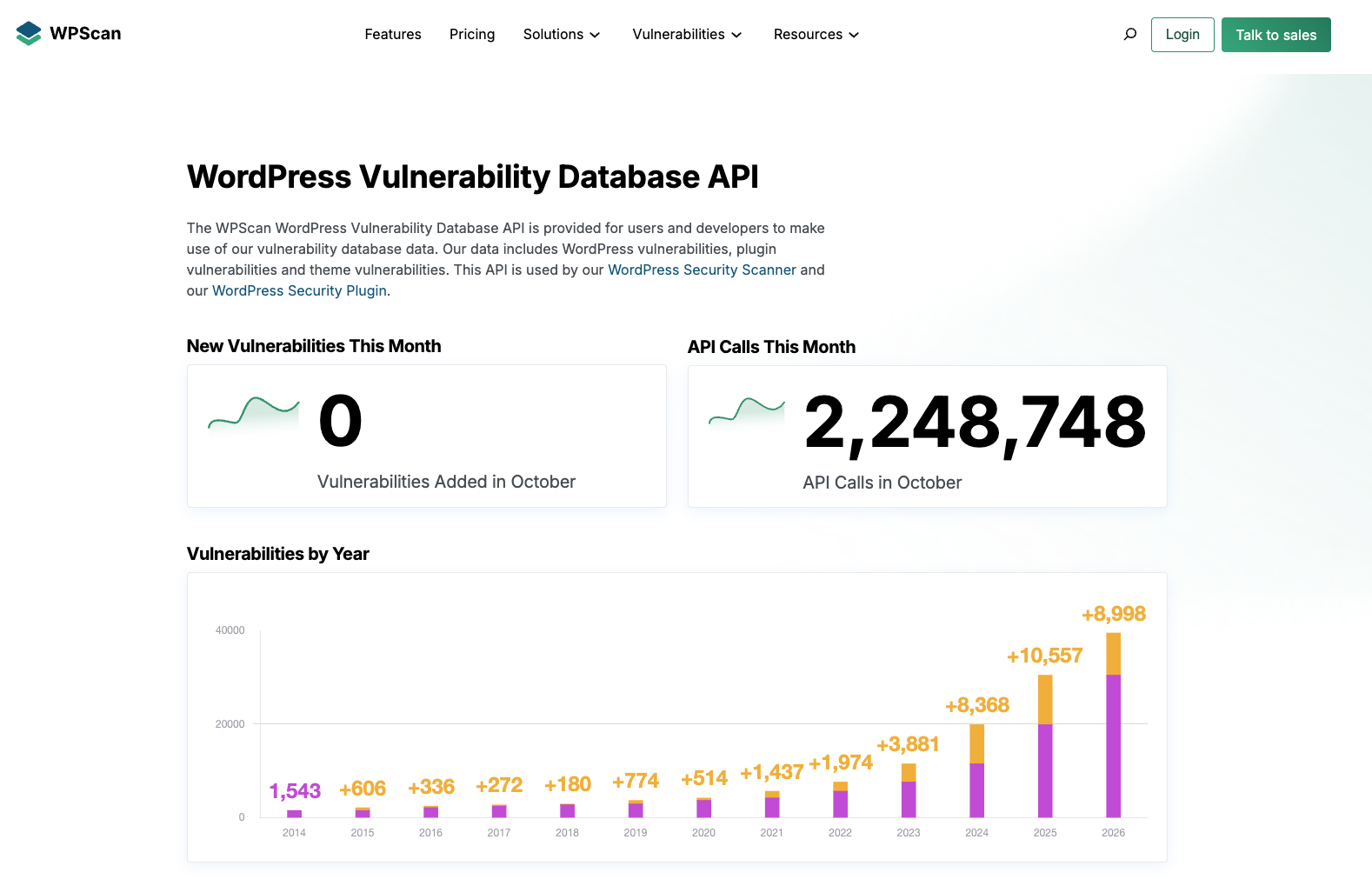
You need to get an API token to make this really usable (see https://wpscan.com/api/). Without one WPScan still runs but it cannot pull vulnerability data and the result is close to useless. Sign up at wpscan.com and grab the token from your profile. The free tier gives you 25 API requests per day, which is plenty for a weekly scan of one site.
Running WPScan Via Docker
You can run this manually as a once off and short have having Docker installed thats is all you need.
docker run -it --rm \
  wpscanteam/wpscan \
  --url https://automation.baldacchino.net \
  --api-token [REDACTED] \
  --enumerate u,vp,vt
Docker pulls the image on the first run and caches it. The --enumerate u,vp,vt flag is the interesting part
uenumerates users. A username is half of a brute force attempt.vpenumerates vulnerable plugins.vtenumerates vulnerable themes.
There is also ap and at (all plugins, all themes) if you want a full inventory rather than just what is known to be vulnerable, but be aware it chews through more of your 25 daily API requests.
This is a real scan against this blog from May this year. This is what came back.
_______________________________________________________________
         __          _______   _____
         \ \        / /  __ \ / ____|
          \ \  /\  / /| |__) | (___   ___  __ _ _ __ ®
           \ \/  \/ / |  ___/ \___ \ / __|/ _` | '_ \
            \  /\  /  | |     ____) | (__| (_| | | | |
             \/  \/   |_|    |_____/ \___|\__,_|_| |_|

                  WordPress Security Scanner
                         Version 4.0.0
_______________________________________________________________

[+] URL: https://automation.baldacchino.net/ [220.233.43.71]
[+] Started: Sat May 23 10:47:54 2026
[+] Command Line: wpscan --url https://automation.baldacchino.net --api-token [REDACTED] --enumerate u,vp,vt

Interesting Finding(s):

[+] Headers
 |  - server: openresty
 |  - x-served-by: automation.baldacchino.net

[+] robots.txt found: https://automation.baldacchino.net/robots.txt
 |  - /wp-admin/
 |  - /wp-admin/admin-ajax.php

[+] WordPress readme found: https://automation.baldacchino.net/readme.html

[+] The external WP-Cron seems to be enabled: https://automation.baldacchino.net/wp-cron.php
 | Confidence: 60%

[+] WordPress version 6.9.4 identified (Outdated, released on 2026-03-11).

[+] WordPress theme in use: generatepress
 | [!] The version is out of date, the latest version is 3.6.1
 | Version: 3.4.0

[+] Enumerating Vulnerable Plugins (via Passive and Aggressive Methods)

[+] woocommerce
 | [!] The version is out of date, the latest version is 10.7.0
 | [!] 8 vulnerabilities identified:
 |   - WooCommerce < 9.1.4  - Stored XSS                  (CVE-2024-39666)
 |   - WooCommerce < 9.2    - Contributor+ Stored XSS
 |   - WooCommerce < 9.4.3  - Reflected XSS               (CVE-2025-5062)
 |   - WooCommerce < 9.4.3  - Unauthenticated Order Creation
 |   - WooCommerce < 9.7.1  - Shop Manager+ Stored XSS    (CVE-2025-26762)
 |   - WooCommerce < 9.9.4  - Shop Manager+ SQLi
 |   - WooCommerce < 10.0   - Shop Manager PII Leak (Multisite)
 |   - WooCommerce < 10.0.3 - Shop Manager+ Stored XSS    (CVE-2025-49042)
 | Version: 9.1.1 (100% confidence)

[+] wp-ulike
 | [!] The version is out of date, the latest version is 5.0.3
 | [!] 9 vulnerabilities identified:
 |   - WP ULike < 4.7.1  - Admin+ Stored XSS              (CVE-2024-6094)
 |   - WP ULike < 4.7.4  - Admin+ Stored XSS              (CVE-2024-7878)
 |   - WP ULike < 4.7.5  - CSRF to Statistic Deletion     (CVE-2024-9649)
 |   - WP ULike < 4.7.5  - Admin+ Stored XSS via Widgets  (CVE-2024-7879)
 |   - WP ULike < 4.7.7  - Admin+ Stored XSS              (CVE-2025-22738)
 |   - WP ULike < 4.7.6  - Admin+ Stored XSS              (CVE-2024-12770)
 |   - WP ULike < 4.7.10 - Unauth Content Spoofing        (CVE-2025-32259)
 |   - WP ULike < 5.0.0  - Subscriber+ Arbitrary Log Del  (CVE-2026-0909)
 |   - WP ULike < 5.0.2  - Contributor+ Stored XSS        (CVE-2026-2358)
 | Version: 4.7.0 (90% confidence)

[i] 2 plugin(s) Identified.

[+] Enumerating Users
[+] baldacchino_admin
[+] Shane Baldacchino
[i] 2 user(s) Identified.

[+] Finished: Sat May 23 10:50:27 2026
This shows I have a few issues here. Core was behind. GeneratePress, my theme, was behind. WooCommerce was sitting on 9.1.1 with eight known vulnerabilities against it and WP ULike was on 4.7.0 with nine.
I used to update manually (when I put up a new post) but the majority of this can be automated. I will come back to this in the patching section because having this visible in WPScan is what pushed me to stop doing most of my updates manually.
It also enumerated my admin username and my display name in about 3 seconds. That is user enumeration working exactly as designed and it is worth sitting with for a moment. This is how I got hacked even though my username is not root. Every bot on the internet can do the same thing, and once they have the username all that is left is the password. This is a big part of why I have taken away the login page away from the internet altogether. By not being able to enumerate logins via tools like Hyrda it closes an attack vector that I was not monitoring.
So WPScan is our eyes around the hygiene of WordPress.
Scheduling WPScan
A one off scan is one thing, but to make this really useful I want this scheduled. Given its Docker I can schedule this easily in Unraid. Regardless of your platform, you could use crontab on or even wp-cron
I run WPScan on a schedule and the script below only messages me via email when there is an issue. I have set this up like this to reduce my signal to noise ration. I cant stress this enough, reliability of the signal matters more than the scan itself. If it emails me every week I will start ignoring it. If it only emails me when something is wrong, I read it. I do use this SMTP server every day, so if I stop receiving other emails then I know I have an issue.
This script below wraps Docker commands but asks WPScan for JSON instead of the banner output. Parsing the human readable text with grep is fragile, it breaks the day the format changes. JSON does not. I parse it with jq, count the vulnerabilities and outdated components and only send mail if there is something to send. Email goes out through Gmail’s SMTP using nothing but curl, so its pretty simply
Save and edit the config to meet your needs.
#!/usr/bin/env bash
#
# wpscan-watch.sh
# Runs WPScan against a target in Docker, parses the JSON result, and only
# emails (via Gmail SMTP) when there is something worth waking up for:
# a vulnerability, an outdated component, or a failed scan.

set -euo pipefail

# ---------------------------------------------------------------------------
# Config - edit these
# ---------------------------------------------------------------------------
TARGET_URL="https://automation.baldacchino.net"
WPSCAN_API_TOKEN="REGENERATE_THIS_AND_PASTE_IT_HERE"   # wpscan.com profile
GMAIL_USER="you@gmail.com"
GMAIL_APP_PASSWORD="your_16_char_app_password"         # NOT your login password
ALERT_TO="you@gmail.com"
REPORT_DIR="/mnt/user/appdata/wpscan"                  # Unraid appdata share
RETENTION_DAYS=30                                      # prune old reports
# ---------------------------------------------------------------------------

mkdir -p "$REPORT_DIR"
STAMP="$(date +%Y%m%d-%H%M%S)"
REPORT="${REPORT_DIR}/wpscan-${STAMP}.json"

# --- email helper: Gmail over implicit TLS, no extra packages, just curl -----
send_alert() {
    local subject="$1"
    local body="$2"
    curl --silent --show-error --ssl-reqd \
        --url "smtps://smtp.gmail.com:465" \
        --user "${GMAIL_USER}:${GMAIL_APP_PASSWORD}" \
        --mail-from "${GMAIL_USER}" \
        --mail-rcpt "${ALERT_TO}" \
        --upload-file - <<EOF
From: WPScan Watch <${GMAIL_USER}>
To: ${ALERT_TO}
Subject: ${subject}
Content-Type: text/plain; charset=utf-8

${body}
EOF
}

# --- run the scan ------------------------------------------------------------
# No -it (cron has no TTY). --rm so we do not leave dead containers behind.
# WPScan exits non-zero when it finds vulnerabilities, so we guard with || true
# and make the alert decision off the JSON, not the exit code.
docker run --rm \
    wpscanteam/wpscan \
    --url "$TARGET_URL" \
    --api-token "$WPSCAN_API_TOKEN" \
    --enumerate u,vp,vt \
    --format json \
    --no-banner \
    --random-user-agent \
    > "$REPORT" 2>/dev/null || true

# --- sanity check: did we get valid JSON? ------------------------------------
if ! jq empty "$REPORT" >/dev/null 2>&1; then
    send_alert "[WPScan] FAILED on ${TARGET_URL}" \
"WPScan did not return valid JSON. The scan errored, the container failed, or
the target was unreachable. Have a look at ${REPORT} on the host."
    exit 1
fi

# --- count vulnerabilities across core, plugins and themes -------------------
TOTAL_VULNS=$(jq '[.. | objects | select(has("vulnerabilities")) | .vulnerabilities | length] | add // 0' "$REPORT")

# --- count out-of-date components (outdated != vulnerable, but worth knowing) -
# WPScan does not emit a simple boolean, so compare detected version to the
# latest_version it pulled from its DB. Different = behind.
OUTDATED=$(jq '
    [ (.plugins // {} | to_entries[].value),
      (.themes  // {} | to_entries[].value),
      (.main_theme // empty) ]
    | map(select(.latest_version != null
                 and .version.number != null
                 and .latest_version != .version.number))
    | length
' "$REPORT")

# --- nothing to report? go back to sleep -------------------------------------
if [ "$TOTAL_VULNS" -eq 0 ] && [ "$OUTDATED" -eq 0 ]; then
    # prune old reports and exit quietly
    find "$REPORT_DIR" -name 'wpscan-*.json' -mtime +"$RETENTION_DAYS" -delete
    exit 0
fi

# --- build a human-readable summary ------------------------------------------
SUMMARY=$(jq -r '
    [
      ( .version
        | select((.vulnerabilities // []) | length > 0)
        | "WordPress core " + (.number // "?")
          + (.vulnerabilities | map("\n  - " + .title) | join("")) ),
      ( (.plugins // {}) | to_entries[]
        | select((.value.vulnerabilities // []) | length > 0)
        | "Plugin: \(.key) " + (.value.version.number // "?")
          + (.value.vulnerabilities | map("\n  - " + .title) | join("")) ),
      ( (.main_theme // empty)
        | select((.vulnerabilities // []) | length > 0)
        | "Theme: \(.slug) " + (.version.number // "?")
          + (.vulnerabilities | map("\n  - " + .title) | join("")) ),
      ( (.themes // {}) | to_entries[]
        | select((.value.vulnerabilities // []) | length > 0)
        | "Theme: \(.key) " + (.value.version.number // "?")
          + (.value.vulnerabilities | map("\n  - " + .title) | join("")) )
    ]
    | join("\n\n")
' "$REPORT")

BODY="Target : ${TARGET_URL}
Scanned: $(date)
Report : ${REPORT}

${TOTAL_VULNS} vulnerability(ies) and ${OUTDATED} outdated component(s) found.

${SUMMARY}

Full JSON report is on the host at the path above."

send_alert "[WPScan] ${TOTAL_VULNS} vuln(s) on ${TARGET_URL}" "$BODY"

# prune old reports
find "$REPORT_DIR" -name 'wpscan-*.json' -mtime +"$RETENTION_DAYS" -delete
exit 0
Cron Scheduling
I use Unraid, and the User Scripts plugin, which is a friendly front end over cron that lets me see the last run and its output from the WebGUI. But ultimately you need a means to schedule this. How you do this will be based on your platform but ultimately you need a means to execute this.
I run this weekly.
chmod +x /mnt/user/appdata/wpscan/wpscan-watch.sh

# User Scripts > Custom schedule, or crontab -e
0 6 * * 0 /mnt/user/appdata/wpscan/wpscan-watch.sh
Preventing Login Attempts – Locking Down wp-admin With Nginx Proxy Manager
WPScan found my username in a few seconds and every bot on the internet can do the same. I found this out the hard way. This sadly is how I got hacked (Cloudflare login). My logs to which I was not parsing showed thousands of login attempts of ‘balacchino_admin‘
The best way to secure login attempts is to prevent login even showing up unless you are on my LAN.
If you cannot reach wp-login.php you cannot brute force it.
My setup means anytime anyone wants to access https://automation.baldacchino.net/wp-admin you are presented with a 403

A quick recap of my stack from the hosting post, I now have nothing talking to WordPress directly. Traffic comes in via OPNsense which forwards 443 to 10.0.0.200:8443 and 80 to 10.0.0.200:8081. Nginx Proxy Manager (NPM) terminates TLS with a Let’s Encrypt certificate and proxies through to the wordpress container over the wp-net bridge network.
NPM is the front door, which makes it the right place to enforce who gets in. This is the relevant part of my compose file.
  nginx-proxy-manager:
    image: jc21/nginx-proxy-manager:latest
    container_name: nginx_proxy_manager
    restart: unless-stopped
    ports:
      - "81:81"        # NPM admin UI
      - "8081:80"      # HTTP  - OPNsense forwards 80 here
      - "8443:443"     # HTTPS - OPNsense forwards 443 here
    volumes:
      - /mnt/user/appdata/nginx-proxy-manager/data:/data
      - /mnt/user/appdata/nginx-proxy-manager/letsencrypt:/etc/letsencrypt
    networks:
      - wp-net
Below are some key parts of my NPM configuration file for my automation.baldacchino.net entry.
# ---------------------------------------------------------------------------
# WordPress hardening
# ---------------------------------------------------------------------------


# 1. The back door is LAN only. Anyone else gets a 403 from nginx
#    before the request ever reaches PHP.
location ~* ^/(wp-admin|wp-login\.php) {
    allow 10.0.0.0/24;
    deny  all;
    include conf.d/include/proxy.conf;
    proxy_pass $forward_scheme://$server:$port;
}

# 2. Nobody needs XML-RPC. It is the favourite brute force endpoint
#    because one request can carry hundreds of password attempts.
location = /xmlrpc.php {
    deny all;
}
There are twi things going on here.
/wp-adminand/wp-login.phpare LAN only.allow 10.0.0.0/24thendeny all. My LAN gets a login page, the rest of the internet gets a 403 from openresty and PHP never even wakes up. This is the whole point of the exercise.xmlrpc.phpis denied to everyone, including me. Nothing I use needs it. It is the favourite endpoint for brute forcing becausesystem.multicalllets an attacker try hundreds of passwords in a single HTTP request.
Use AI to generate this config. Because this is configration for NPM, when Docker updates the image this will persists.
Accessing WordPress Remotely
I often author content remotely (I am on a train now). I connect back to my house via WireGuard. My laptop lands on 10.253.0.2 in the tunnel and 10.0.0.0/24 is routed down it, so from a networking point of view I am at home.
But my browser does not know that. automation.baldacchino.net resolves to my public IP.
So when I type in https://automation.baldacchino.net URL in Chrome, this goes out via my default route because automation.baldacchino.net resolves to a public IP address and hence this arrives at NPM from the internet side, and NPM does exactly what I told it to do which is to give a 403 and block it.
I was going to use a hosts file override, but AI alerted me to the fact that Chrome can be opened with a parameter that allows host overrides. I didn’t know this.
The proper fix is split DNS. A host override in OPNsense’s Unbound so that inside the house (and inside the tunnel) the name resolves to 10.0.0.200. The catch is DNS can only change the IP, not the port, and NPM listens on 8443 not 443. I could re-plumb NPM to sit on 443 but I have other things on that host and I have never gotten around to it. So instead I have a small script on my Mac that I keep with the rest of my utilities in ~/scripts/mac. I just execute this shell script which opens up Chrome with an IP and Port override for automation.baldacchino.net
#!/bin/zsh
# Open automation.baldacchino.net in Chrome, resolved to the LAN box
# instead of the public IP. Keeps the real hostname so the Let's Encrypt
# cert validates and WordPress cookies/redirects behave normally.

HOSTNAME="automation.baldacchino.net"
TARGET="10.0.0.200:8443"          # HTTPS vhost on the LAN (NOT 8080/8081)
URL="https://${HOSTNAME}/wp-admin/"
PROFILE="${TMPDIR:-/tmp}/chrome-${HOSTNAME}"

exec "/Applications/Google Chrome.app/Contents/MacOS/Google Chrome" \
  --user-data-dir="$PROFILE" \
  --host-resolver-rules="MAP ${HOSTNAME} ${TARGET}" \
  --no-first-run --no-default-browser-check \
  "$URL" >/dev/null 2>&1 &
This is in many ways is a better solution than a hosts file and deals with non standard ports.
The parameter --host-resolver-rules is Chrome’s own resolver override and unlike /etc/hosts it lets you map a hostname to an IP and a port.
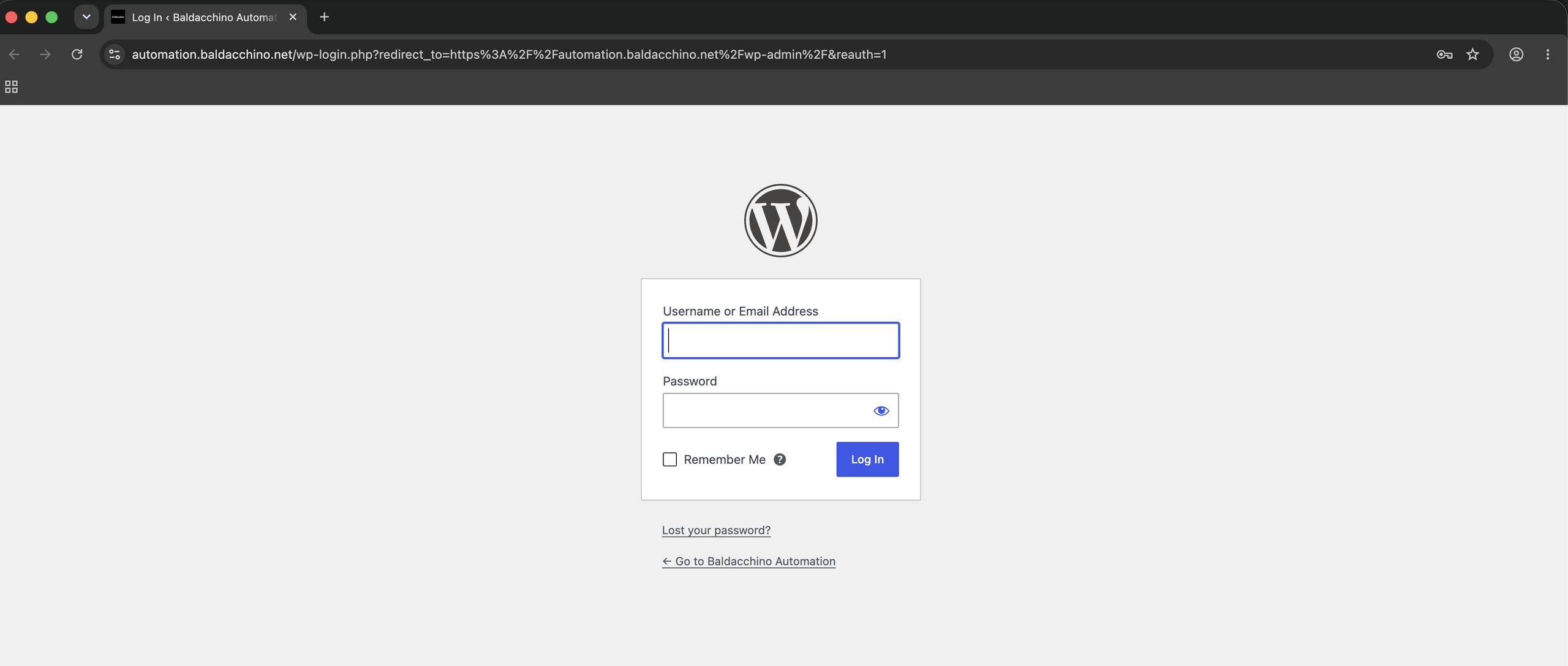
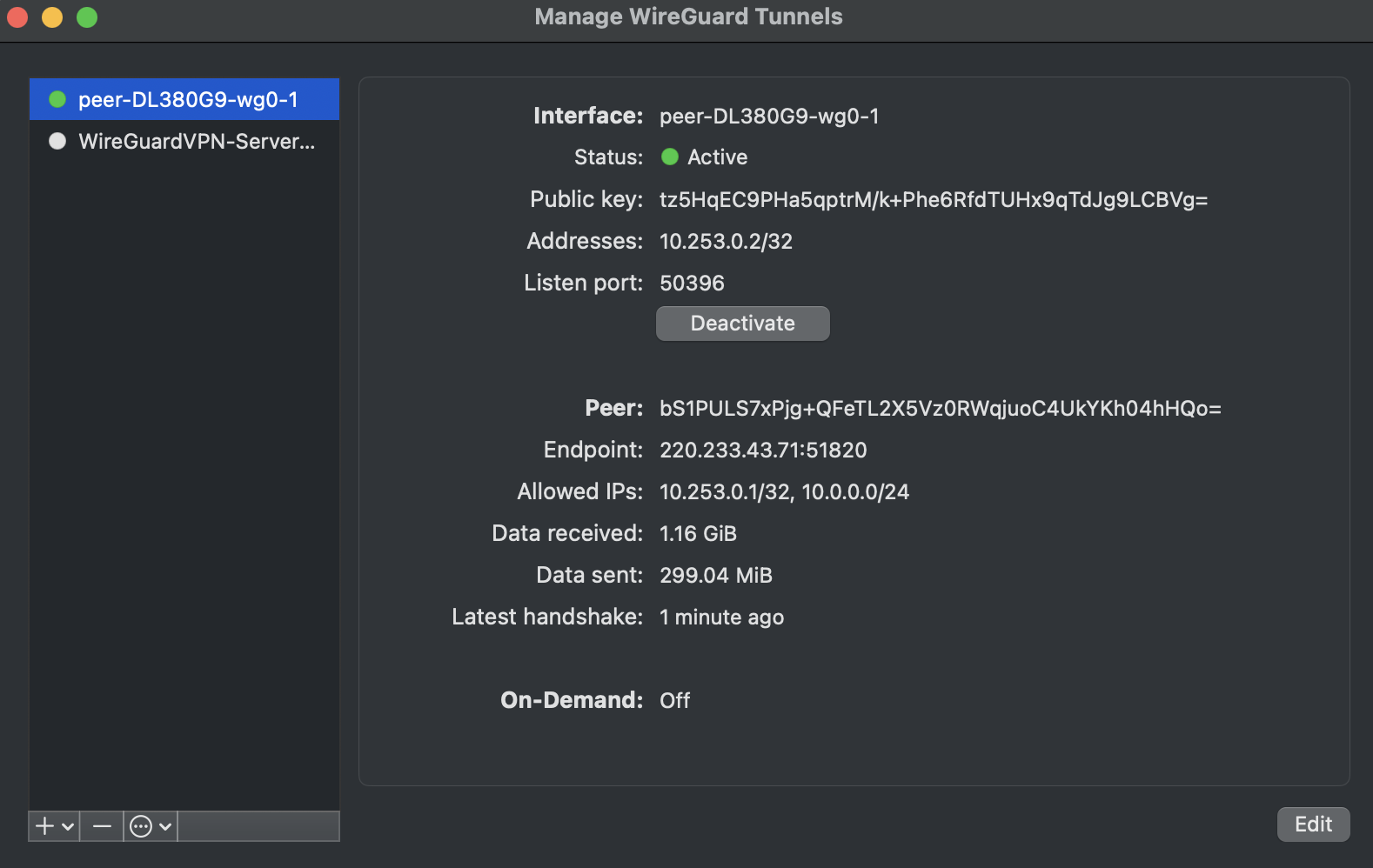
Run it and I get a Chrome window sitting on the WordPress login page, coming in via the tunnel as a LAN address. So as far as NPM is concerned I am just another device on the LAN.
Patching WordPress
We have just covered preventing people (bots) logging in to WordPress via wp-admin and wp-login and a means to be automatically notified when my instance has a plugin or version of core that has a known vulnerability.
But how do you patch? I want to split this in to two areas here that being Plugins/Themes and Core
Plugins & Themes
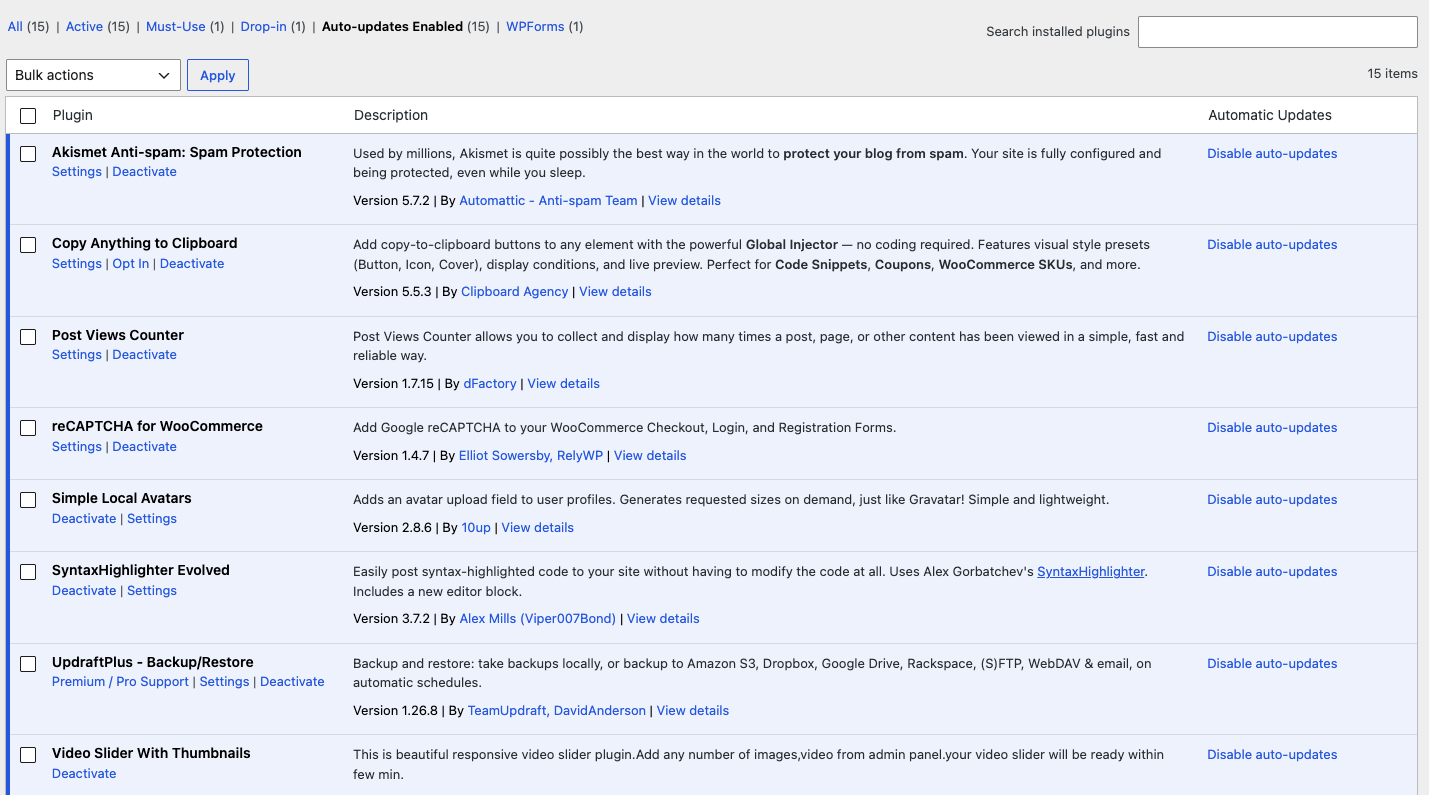
Since 5.5 WordPress has had per plugin auto updates built in. Go to Plugins, and against each one click Enable auto-updates. Same again for your theme under Appearance, Themes.
Yes, an auto update can break your site (it is very rare but can happen). I have had a plugin update take a page layout with it. But I take nightly backups to S3 with versioning and UpdraftPlus on top of that and would prefer to take the risk of an issue caused by a plugin update versus a breach.
If you prefer the command line, the Bitnami image I use ships WP-CLI so you can do it via that manner
docker exec wordpress wp plugin auto-updates enable --all
docker exec wordpress wp theme  auto-updates enable --all

# and confirm
docker exec wordpress wp plugin auto-updates status --all
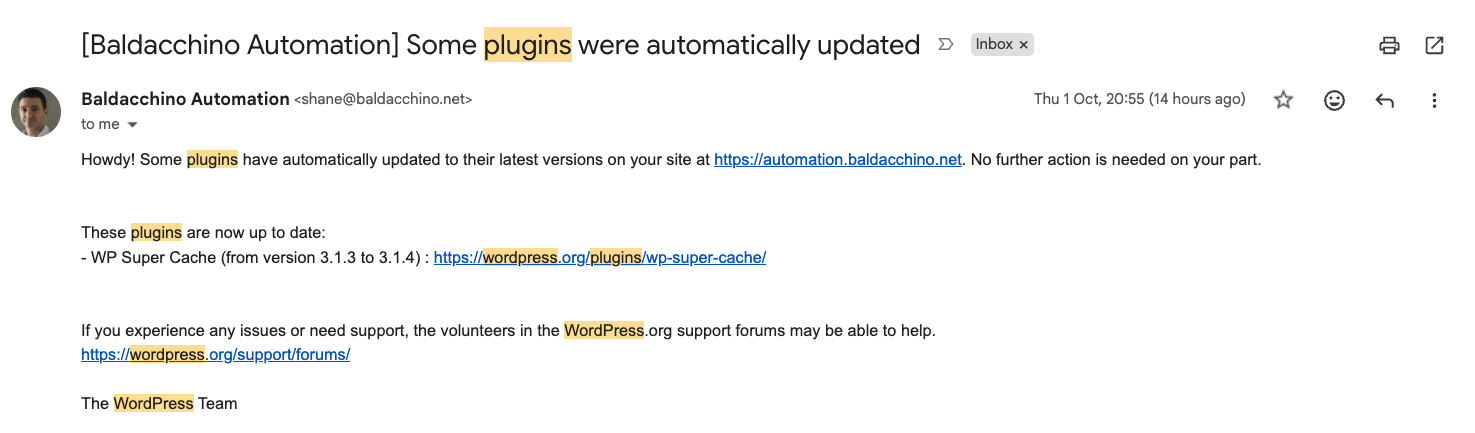
WordPress Core
Plugins really is the easy part. The rest is PHP, Apache, MariaDB and Nginx Proxy Manager. Without using Docker keeping the above up to date is hard work. In my prior post, WordPress Hosting Options I stated that I have landed on using Docker. This is where the Docker Compose approach I spoke about really shines.. The binaries live in the image, my data lives in /mnt/user/appdata/wordpress, and updating one does not touch the other. This is simply a matter of stopping my stack, performing a new pull and then bringing the stack up.
docker compose pull
docker compose down
docker compose up -d
docker compose logs -f --tail=50 wordpress
Given configuration of WordPress, NPM and MariaDB are persisted on the file system a pull fetches the new images for MariaDB, WordPress and NPM. down stops and removes the containers, up -d creates fresh containers from the new images and mounts the same data back in. The site is down for about 1 minute while MariaDB starts.
As you can see in my compose file below this really now becomes a simple process for me to ensure my stack is up to date.
networks:
  wp-net:
    driver: bridge
services:
  mariadb:
    image: mariadb:latest
    container_name: mariadb_wp
    environment:
      MARIADB_ROOT_PASSWORD: [REDACTED]
      MARIADB_DATABASE:  [REDACTED]
      MARIADB_USER:  [REDACTED]
      MARIADB_PASSWORD:  [REDACTED]
    command: >
      --innodb_buffer_pool_size=8G
      --max_connections=100
      --innodb_log_file_size=512M
      --innodb_flush_log_at_trx_commit=2
      --performance_schema=OFF
    volumes:
      - /mnt/user/appdata/wordpress/db/data:/var/lib/mysql
    restart: unless-stopped
    networks:
      - wp-net
  wordpress:
    image: bitnami/wordpress:latest
    container_name: wordpress
    depends_on:
      - mariadb
    environment:
      WORDPRESS_DATABASE_HOST:  [REDACTED]
      WORDPRESS_DATABASE_NAME:  [REDACTED]
      WORDPRESS_DATABASE_USER:  [REDACTED]
      WORDPRESS_DATABASE_PASSWORD:  [REDACTED]
      WORDPRESS_SKIP_BOOTSTRAP: "yes"
      WORDPRESS_PASSWORD: " [REDACTED]"
      WORDPRESS_HOSTNAME: "automation.baldacchino.net"
      PHP_UPLOAD_MAX_FILESIZE: 512M
      PHP_POST_MAX_SIZE: 512M
      PHP_MEMORY_LIMIT: 512M
    volumes:
      - /mnt/user/appdata/wordpress/wp:/bitnami/wordpress
    restart: unless-stopped
    networks:
      - wp-net
  nginx-proxy-manager:
    image: jc21/nginx-proxy-manager:latest
    container_name: nginx_proxy_manager
    restart: unless-stopped
    ports:
      - "10.0.0.200:81:81"
      - "8081:80"
      - "8443:443"
    volumes:
      - /mnt/user/appdata/nginx-proxy-manager/data:/data
      - /mnt/user/appdata/nginx-proxy-manager/letsencrypt:/etc/letsencrypt
    networks:
      - wp-net
I do this roughly monthly as I try to post monthly, or whenever my WPScan email tells me to. Then I re-run the scan by hand and make sure it comes back quiet
Summary
I am going to reiterate what I stated at the top of this post. WordPress is secure. Its just popular and you need to ensure you keep your stack hygienic. Its the same as many IT endeavours. I thought I would finish this post with a table that really summarises what I do.
| Layer | What | Location | Cadence |
|---|---|---|---|
| Scanning | WPScan in Docker, JSON parsed with jq, Gmail via curl | Unraid, User Scripts | Weekly, Sunday 6am. Email only on findings |
| Surface Area Reduction | NPM allow/deny on wp-admin, wp-login.php and xmlrpc.php | Nginx Proxy Manager, Advanced tab | Always on |
| Remote access | WireGuard plus Chrome –host-resolver-rules | Unraid and my Mac | When I am away |
| Patching – Plugins | WordPress built in auto updates | WordPress | As released |
| Patching – Core | docker compose pull / down / up -d | Unraid | Monthly, or when WPScan says so |
| Backups | mariadb-dump + S3 versioning + UpdraftPlus | Unraid to us-east-1 | Nightly, and before every update |
Keeping WordPress locked down today in 2026 is the easiest it has ever been, the tools are there and lets be honest, it needs to be with the plethora of bots attacking you flat out. Fight bots with AI to help bring your stack up to speed.
If you run WordPress and are doing security different, or you have a better way I am keen to learn and please leave me a comment below.
Thanks
Shane Baldacchino