I like WordPress, its something I have been using for over 20 years now and it’s something I am pretty familar with. This blog is based on WordPress.
I have helped small and medium business, been on stage to talk about breaking in to WordPress, debugged my fair share of performance and theme problems. I have seen it morph from a basic CMS to something today you can do almost anything on (WooCommerce etc).
This post is about hosting options but I want to set the scene first with a few disclaimers
Disclaimers
You are on my blog, you know me. I am a builder. If you read my other posts you will know I am the kind of person who monitors air compressor refill cycles with pressure transducers and automates ceiling fans with Tasmota and MQTT. I want to understand the stack. I want to control the stack. I want to tune the stack (mainly for efficiency).
This post is written from a builder perspective and typically where I have hosted WordPress has been a result of where I can get free compute or if not free, built accordingly to meet my needs.
If you are someone who just wants a website that works and you do not care what is under the hood, that is completely valid, and I cover managed options below for WordPress and perhaps WordPress isnt for you (SquareSpace etc).
Why WordPress?
I have been working with WordPress since May 2003, I was running a webhosting company (Webstrikesolutions) and when the first version of WordPress launched it changes much of our daily operations (support tickets helping customers). It was a fork of b2/cafelog. At the time, I was hosting approx 40 000 domains I could see how WordPress was changing web-hosting.
The single click install for me was a big one. Before this we would spend ages (lets say 30 to 45 minutes) helping customers install phpBB or DotNetNuke and it was a manual process of uploading files via FTP, creating MySQL / MSSQL databases and configuring config file. The single click installer removed the friction. It sounds simple today but 23 years ago it was a huge time saver.
Today WordPress powers over 43% of all websites on the internet according to W3Techs. When I first read I though it was a typo. It is that popular to prove a point that would resonate with a crowd of a few thousand I built a solution to break in to WordPress via the plugin Building Management and you can see this below. I chose to attack WordPress because its popular.
In 2026 it commands a 61%+ market share among all known content management systems. To put that in to perspective, TechCrunch, Sony Music, Microsoft News, the BBC America site and the Facebook Newsroom all run on WordPress. The next closest CMS is Shopify at under 7%. WordPress is probably as important as S3. Perhaps its not as mission criticial and that comment will come back to bite me, but what I am trying to say incredibly popular.
Hosting Options.
This is the what I really want to talk about in this post. How do you host WordPress?. This blog in case it is not obvious is based on WordPress.
It has been on shared hosting, VMWare (Linux VM), a VPS (Linux VM), AWS (EC2 CFN Stack), a Raspberry Pi4 (Storage on NFS), a NAS, and now Docker Compose on Unraid. Each platform taught me something and each have trade-offs.
In this post I will show you how to evaluate the most common WordPress hosting platforms, why I think Docker Compose is the superior deployment method, share my exact Docker Compose stack that serves this very blog from my garage and how to get sub 30ms TTFB (Time To First Byte) with a caching strategy that pre-compiles to static HTML.
I will break this post down in to the following sections
- WordPress.com (Managed Hosting)
- Shared Hosting
- VPS (Virtual Private Server)
- NAS (Synology / QNAP)
- Local Enterprise IT Gear
- Traditional File Install vs Docker – Why Docker Compose Wins
- My Docker Compose Stack
- Performance & Caching
- Backup Strategy
- Summary
WordPress.com (Managed Hosting)
I actually have no real experience running a production site on WordPress.com. That said, I want to give it fair representation based on my knowledge as for many people it makes sense.
The value proposition is straightforward. You do not manage infrastructure. You do not patch PHP. You do not update MariaDB. You do not configure Nginx. You do not manage TLS certificates. You do not worry about backups. You do not worry about uptime.
Automattic (who run Wodpress.com) handles all of it. The operational expenditure (opex) is dramatically lower than any self-hosted option because the opex is effectively zero on the infrastructure side. You pay your monthly or annual subscription and you focus on content.
WordPress.com offers a tiered pricing model ranging from a free tier (with WordPress.com branding and ads) through to their Business and Commerce plans. The Business plan and above give you SFTP access, the ability to install custom plugins and themes and removes the WordPress.com branding. Below Business tier you are limited to their curated plugin and theme catalogue which is restrictive.
My site has 13 active plugins and WooCommerce which makes my monthly cost $68USD /$1,633USD p.a.
It is not for me though. And if you have read this far, it is probably not for you either.
| Pro or Con | Description |
|---|---|
| Pro | Zero infrastructure management, automatic updates, backups, CDN, TLS |
| Pro | Lowest opex of any option, focus entirely on content |
| Pro | Global edge caching out of the box, strong uptime SLA |
| Con | Limited plugin/theme control below Business tier |
| Con | No access to underlying infrastructure, PHP, database, web server |
| Con | Vendor lock-in to Automattic’s platform and pricing decisions |
| Con | No ability to tune performance at the database or web server level |
| Con | Cost $$$ |
Shared Hosting
Shared hosting is where most people start and where I started over 20 years ago. It is cheap. Often under $10 AUD per month. cPanel or Plesk gives you a GUI. I would recommend Suncoast Hosting as a great Australian host (Melbourne Servers) for $3.30AUD per month. One click installs and for many people it is all they will ever need. If you are standing up a blog, a small business site or a portfolio, this is a pretty easy way.
But the problem is it’s cheap, and that means you are sharing CPU, memory, storage I/O and network bandwidth with potentially hundreds of other tenants on the same physical server. This is the noisy neighbour problem can be real. Peformance may not be an issue for you, but if site performance is important, the big call out is you may be impacted by what the person next door is doing. Someone else on that server could hurt your response time. You have no visibility in to this and no control over it.
REflecting on my hosting days, I would ideally run close to 500 domains on one server. We have SSD / Nvme’s today but from a shared hosting service, their goal is to increase density.
The bigger challenge with shared hosting is PHP version management. WordPress core moves forward and plugins move with it. When your host is running PHP 7.4 and WordPress and its plugin ecosystem is expecting 8.2+ you are stuck.
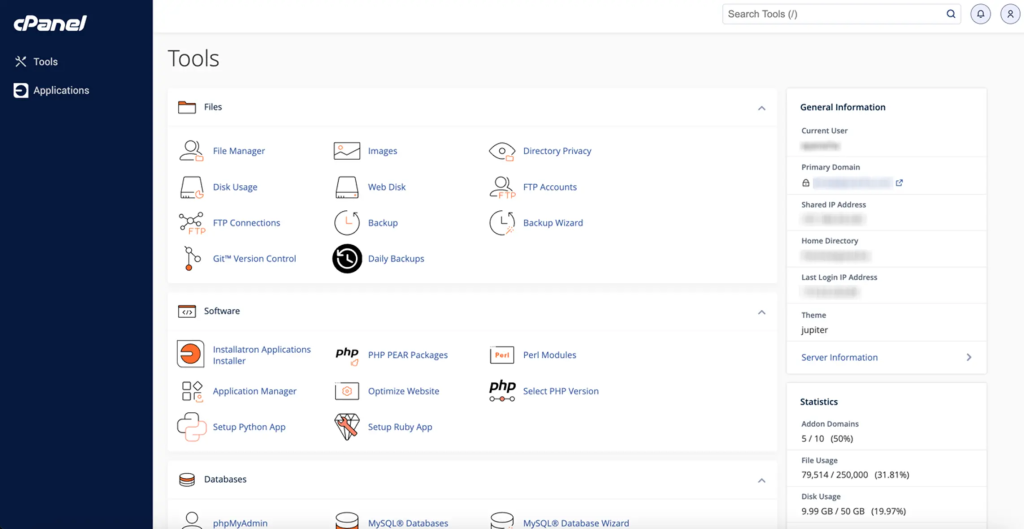
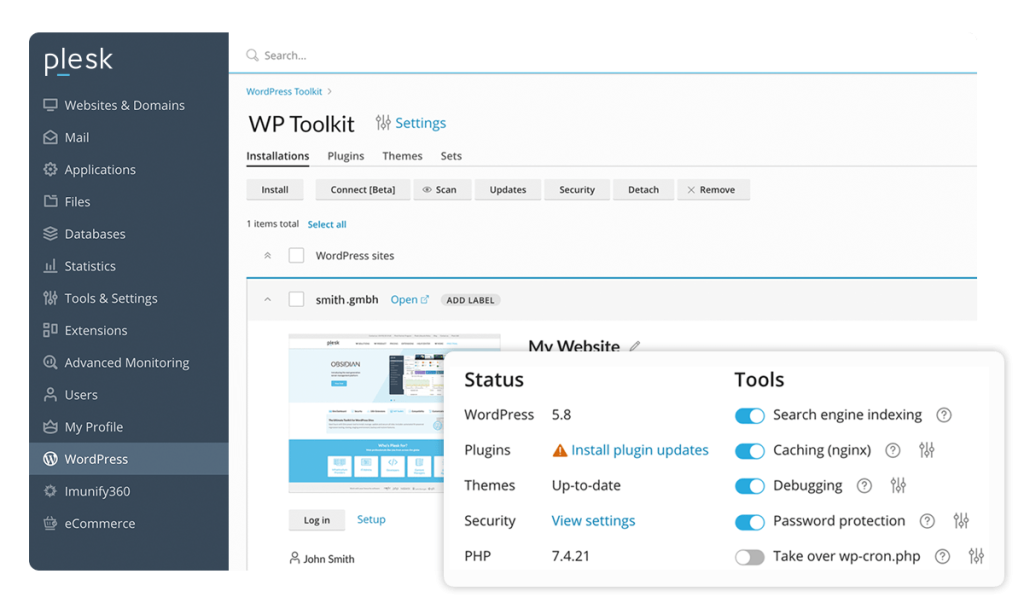
You could (depending on your Webhosting provider) end up in a situation where you cannot update WordPress or plugins because of PHP incompatibilities, and that is a security risk. Outdated PHP versions themselves carry known CVEs that your host may not be patching.
Then there is the .htaccess and php.ini overrides. Shared hosts will to a degree lock this down and state what you can and cannot modify. Need to increase upload_max_filesize beyond 32M? Need to adjust max_execution_time for a migration plugin? Need mod_rewrite rules that go beyond the basics? You may or may not be able to, depending on how tightly the host has locked things down. This is something that was common for me in a past life.
| Pro or Con | Description |
|---|---|
| Pro | Cheap, often under $5 AUD/month |
| Pro | One click installers, no technical knowledge required |
| Pro | Provider manages hardware, OS, networking |
| Con | Noisy neighbour problem, shared CPU/memory/storage I/O |
| Con | PHP versions controlled by the provider, often outdated |
| Con | Limited access to .htaccess, php.ini and server configuration |
| Con | No root access, no ability to install custom software |
<!– IMAGE PLACEHOLDER: Screenshot of a cPanel interface showing PHP version selector locked to older versions –>

Shared hosting has a place. It is great for getting started, for low traffic sites and for people who do not want to manage infrastructure. But if performance, security and control matter to you, it is a stepping stone, not a destination.
VPS (Virtual Private Server)
A VPS solves the OS problem. You get your own operating system, your own PHP version, your own web server configuration. You control the stack. Install Nginx over Apache if you prefer it. Compile PHP from source if you need a specific module. Configure MariaDB with custom buffer pools and query caches. A VPS gives you root access and with root access comes freedom.
This is a significant step up from shared hosting because you are no longer bound by the provider’s software choices. You can run Ubuntu 24.04 with PHP 8.3, MariaDB 11.8 and Nginx with HTTP/2 and TLS 1.3 the day they are available.
The noisy neighbour problem does not completely disappear though. Rather than shared hosting all under Apache or IIS you are now one of many VM’s on a hypervisor.
On the storage I/O front, you are still sharing IOPS with other tenants on the hypervisor. I have seen VPS hosts where disk I/O latency spikes to 50ms+ during peak periods because the underlying storage array is oversold. CPU contention is less of an issue with modern hypervisors that do a better job of CPU scheduling, but it is still a factor on budget hosts.
Does your VPS host over provision, most probably do (think T series in AWS).

The key is choosing a provider that does not oversell. You generally get what you pay for.
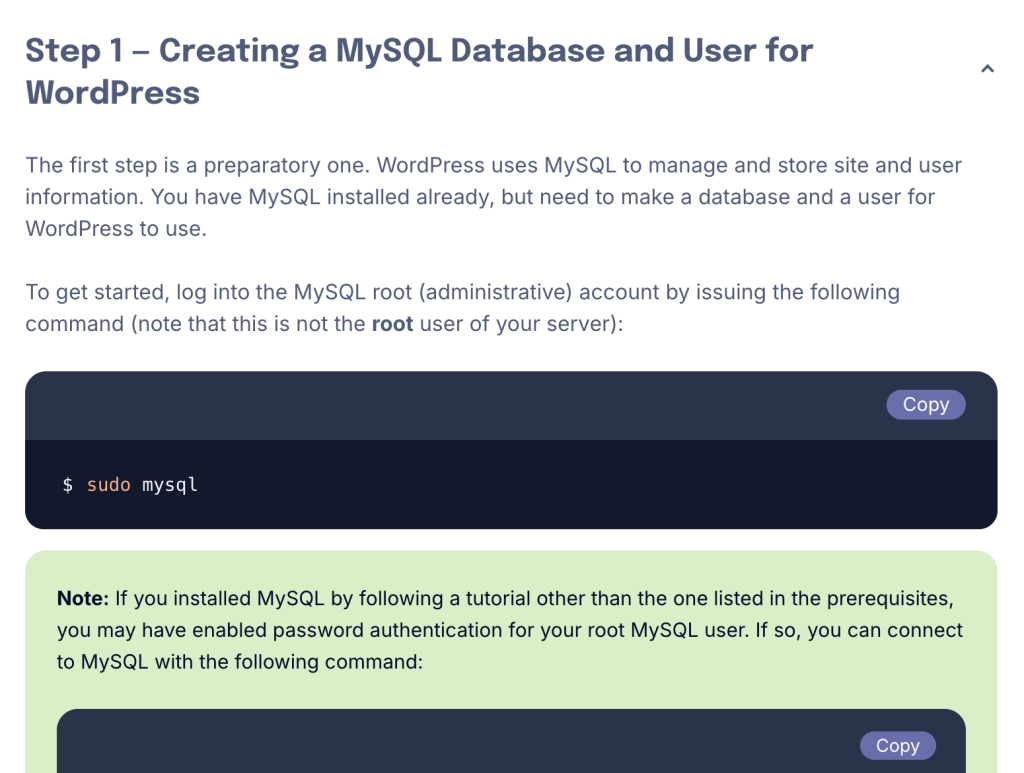
I ran this blog on a VPS for several years on VPSBlocks and they served me well (Australian all SSD VPS Host). Providers, DigitalOcean and Vultr offer NVMe-backed VPS instances in the $20-$40 AUD/month range that give you a solid WordPress hosting platform. If you are comfortable with Linux, can manage your own updates and security patching, this is a strong option.
| Pro or Con | Description |
|---|---|
| Pro | Full OS control, choose your PHP/DB/webserver versions |
| Pro | Predictable pricing, no surprise bills |
| Con | Storage I/O still shared on budget providers |
| Con | You own patching, security, backups |
| Con | No hardware redundancy unless you pay for it |
NAS (Synology / QNAP) – No Update SLA – Do Not Recommend For Security
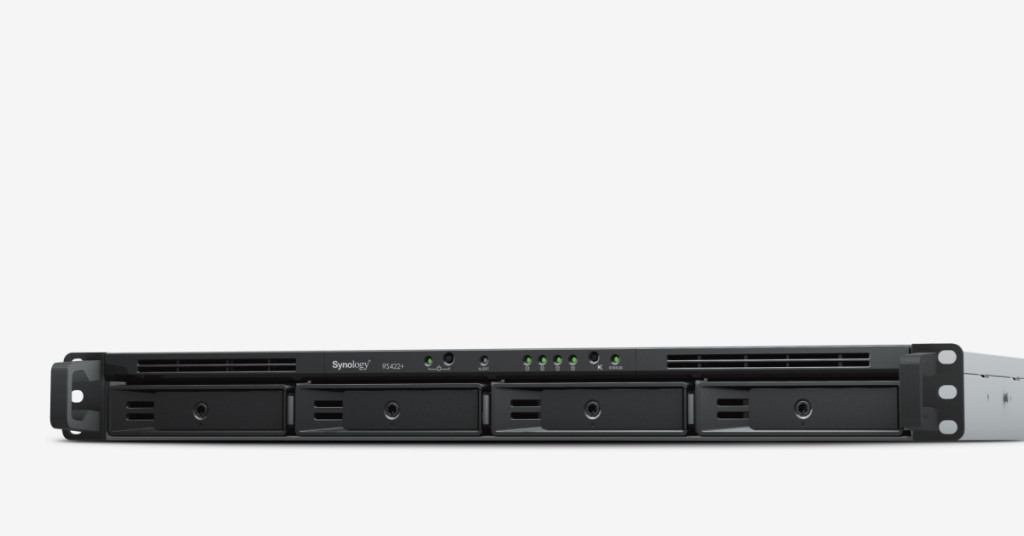
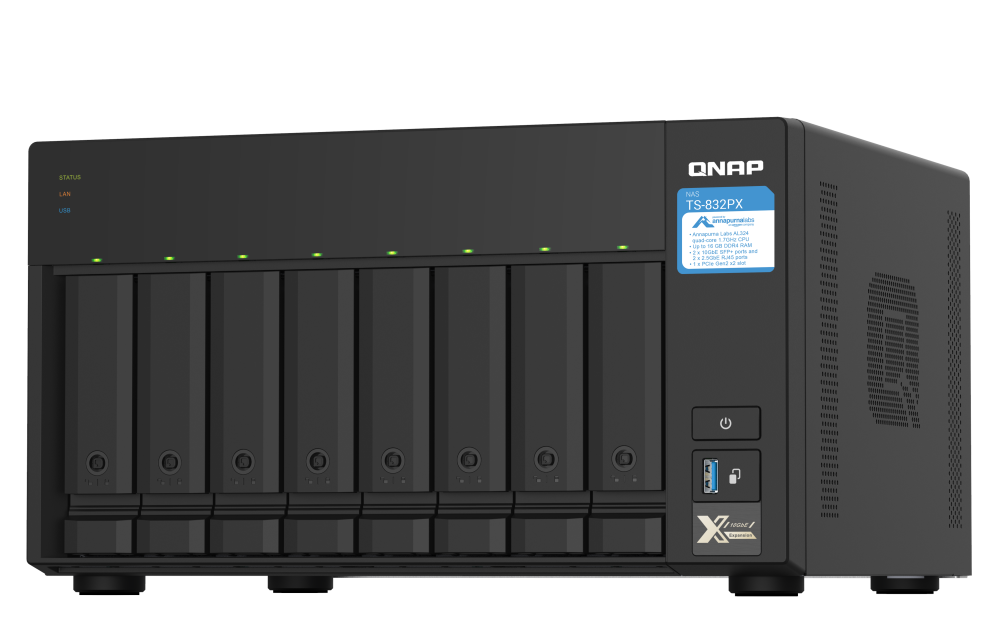
Both Synology and QNAP make it trivially easy to run WordPress. When I left working at the HyperScalers an cloud was no longer free I decided to use a Synology NAS to host this. Not on Docker, just as a package, because it was easy, and it just worked.
Their package managers (Synology’s Package Center, QNAP’s App Center) include WordPress as a one click install. I can not speak to QNAP, zero experience but research indicates similar issues.
For someone who wants to self-host without touching the command line, this is appealing. You already have the hardware sitting there as a file server, why not use it to run WordPress?
I ran this blog for around 2 years with my Synology, it was good fora while but soon became a huge pain in my backside, that problem problem is rigidity. These NAS platforms ship their own bundled versions of PHP, MariaDB and Apache/Nginx. These versions are often significantly behind current releases.
The package being tightly coupled on Synolgoy has the following line injected in to wp-config.php
define('AUTOMATIC_UPDATER_DISABLED', true);
I did of course try to change this and yes it instantly broke my site in this tightly coupled environment. I did initially make this work by SSH’ing in and editing files, but an update from Synology just reverts changes.
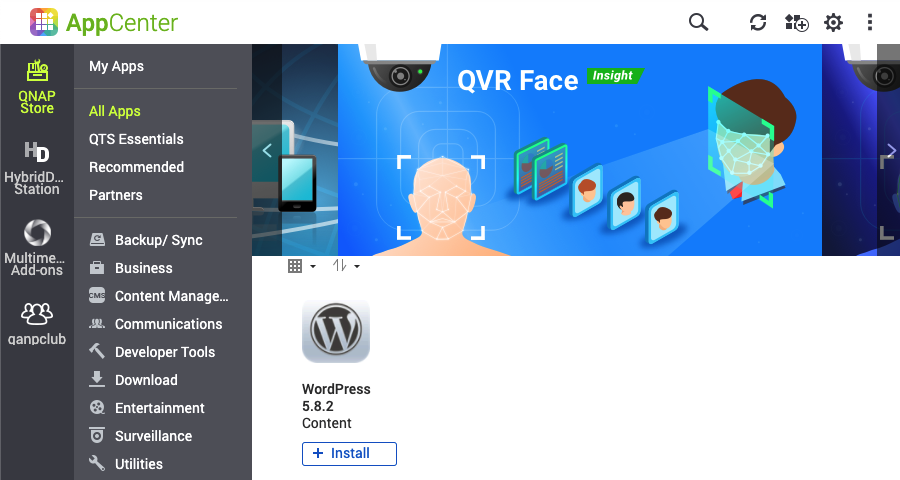
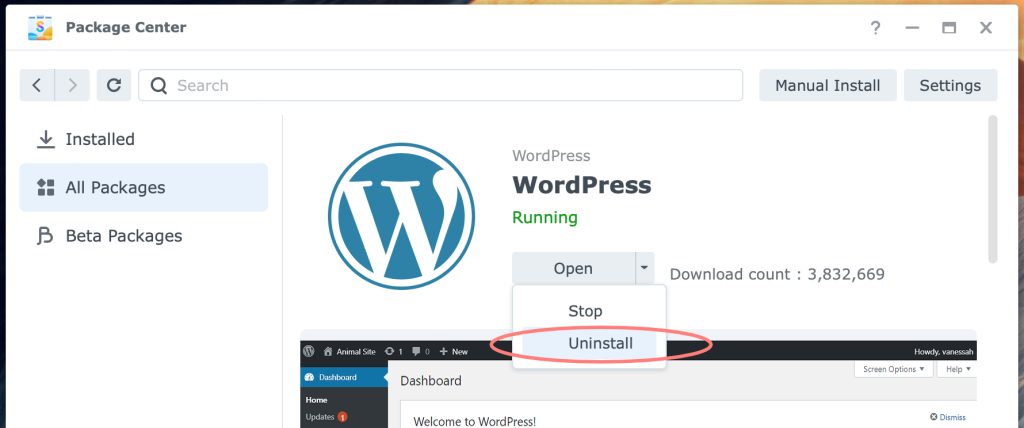
The biggest issue you and land locked to the versions Synology deploy. My NAS got old and Synology DSM updates (which are tied to WordPress Versions) lag. It got close to being year behind at the worst time.
Security & hygiene is everything to me, and for this reason unless Synology and QNAP have some form of SLA around updates I am going to say steer clear, the risk of exploitation in PHP & WordPress, let alone plugins is too much.
Docker is an option and both Synology and QNAP allow you to run conatiners, but the Docker implementations on these platforms are limited compared to running Docker on a proper Linux host. Port mapping, volume management, networking and compose are just hard work as their GUI’s try to hide settings.
| Pro or Con | Description |
|---|---|
| Pro | One click install via Package Center / App Center |
| Pro | Hardware you already own, no additional hosting cost |
| Pro | GUI driven, no command line required |
| Con | PHP, MariaDB and web server versions pegged to NAS firmware |
| Con | Not Secure – No SLA on update. Often 2+ major PHP releases behind current |
| Con | Limited database tuning, no access beyond what the GUI exposes |
| Con | Docker support exists but is clunky compared to native Linux |
If you want a set-and-forget WordPress host on your local network and can accept the version constraints, a NAS is fine. But if you want control over your stack, look elsewhere.
Local Enterprise IT Gear
This is my favourite, and where I am now.
This blog runs from an HP ProLiant DL380 G9 in my garage on Unraid. I control the hardware, the OS, the storage tier, the network and every piece of software in the stack. There are no noisy neighbours. The I/O is mine. The CPU is mine. The memory is mine. I decide when PHP gets upgraded. I decide when MariaDB gets patched. I decide which TLS configuration is in play.
The machine cost $200 on Ebay with 128GB of RAM and 2 x 2.1ghz (50w TDP) CPU’s and no RAID controller. I needed to buy a rail kit, drives and an controller to drive my disks (I bought an LSI 9305-16i)
There are cons. Firstly you may be thinking power. Yes base it uses around ~135w all the time. I have a battery and have not pulled power from the grid since installation but if we assume the following there is a cost to this fiscally.135kw x $0.30 per kw/hr x 24 hours x 365 days = $354.78
The biggest thing is, its hardware, it is on you. It should be build redundant. You need to be comfortable with server hardware, storage, networking, power, cooling and the reality that your uptime is your responsibility.
Enterprise gear like the DL380 G9 can be picked up for very reasonable prices on the second hand market. This is gear that is coming out of data centres as organisations refresh their fleets. It is built to run 24/7. The iLO (Integrated Lights-Out) management gives you remote console access even when the OS is unresponsive, think of it as out of band management,. ECC memory protects against bit flips. Redundant power supplies keep you running during a PSU failure. Hot swap drive bays let you replace failed drives without downtime. This is gear designed for exactly this kind of workload.
My DL380 G9 has 128GB of DDR4 ECC RAM, dual Xeon E5-2680 v4 CPUs and a mix of SSDs for appdata and larger spindles for media. Unraid sits on top providing me Docker, VMs and a flexible storage pool. WordPress is just one of many services running on this machine alongside Frigate NVR, Home Assistant, Plex, Immich and more
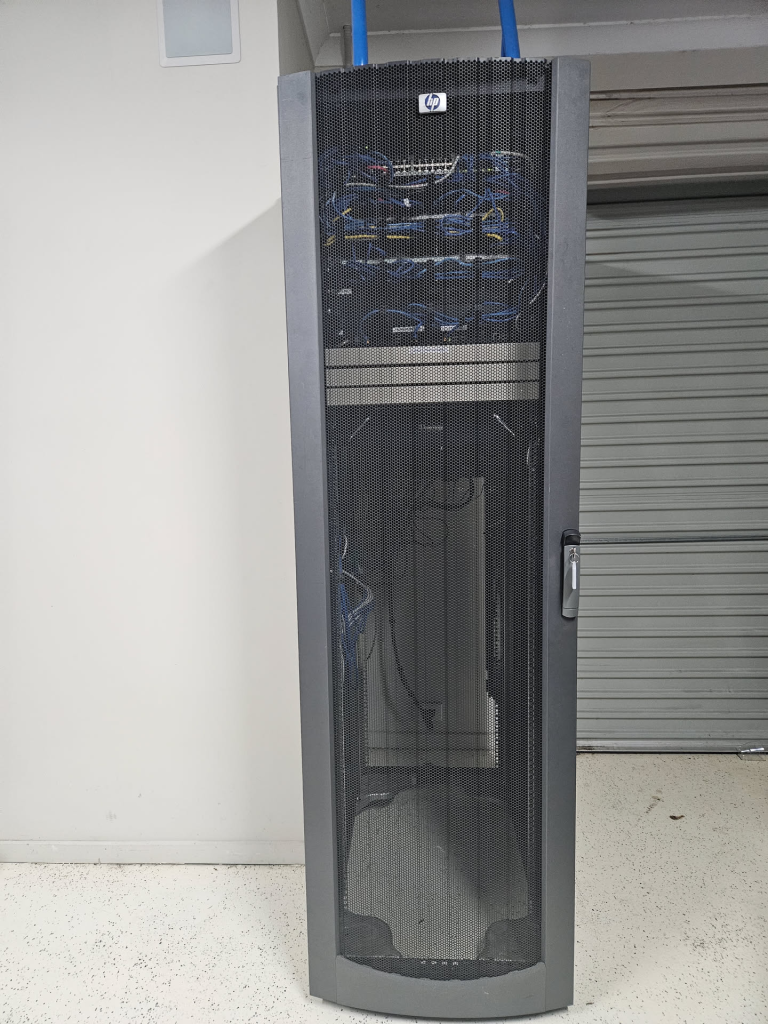
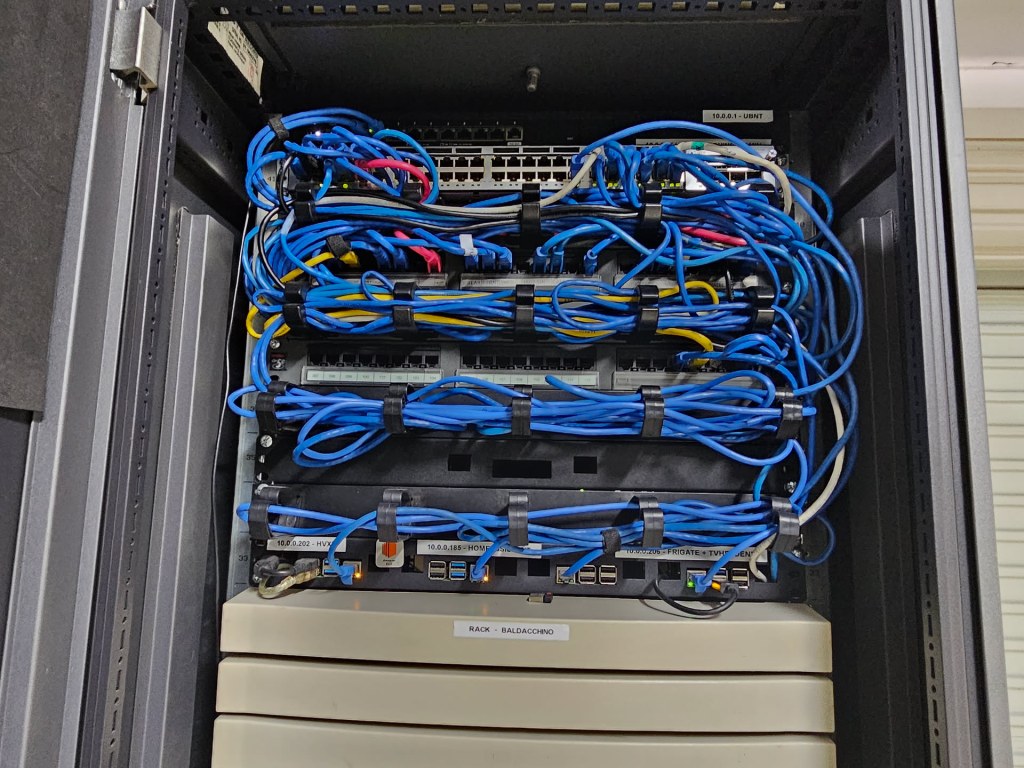
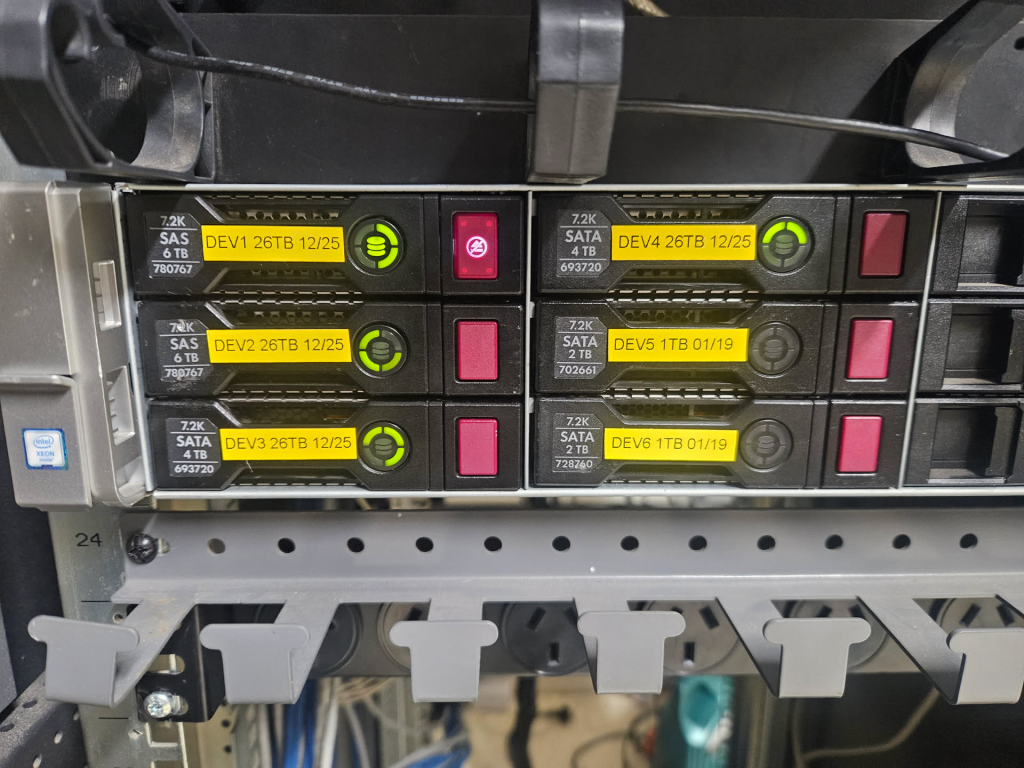

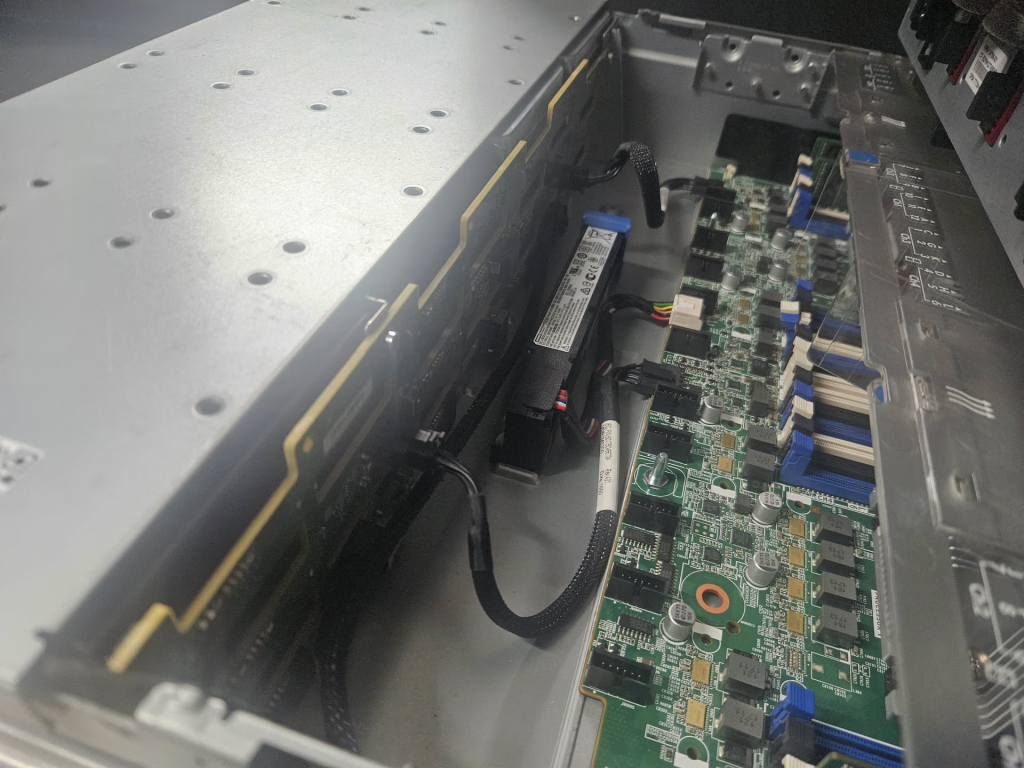
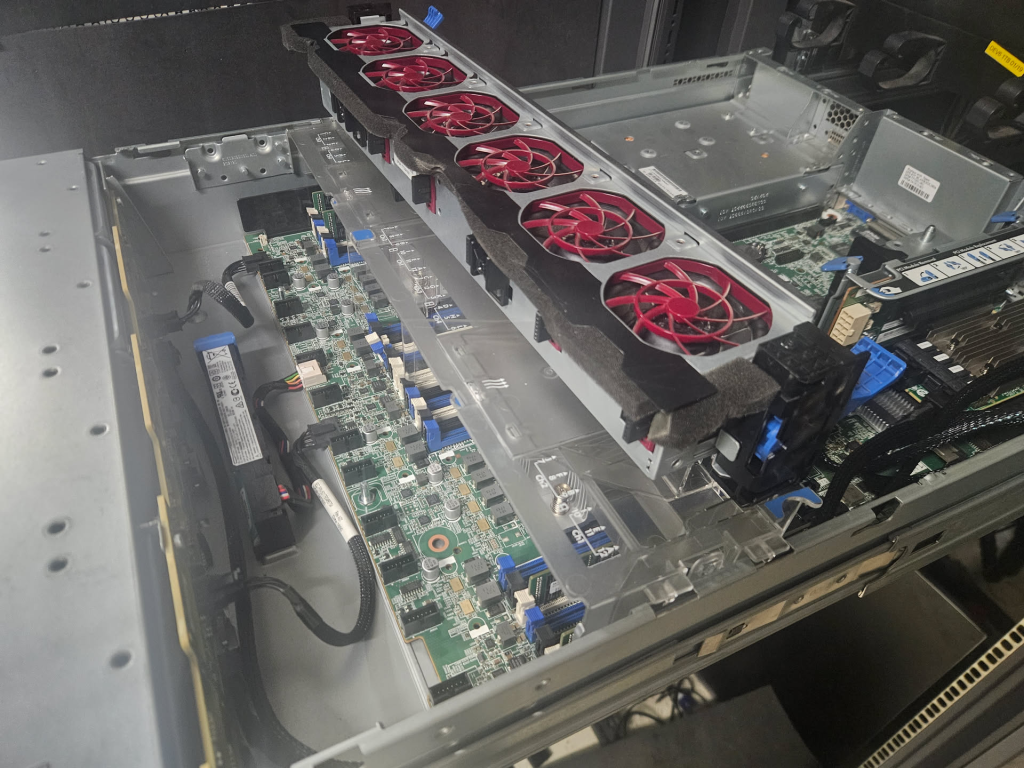
My DL380 G9 Running Unraid With Docker Containers
| Pro or Con | Description |
|---|---|
| Pro | Total control over hardware, OS, storage, network and software stack |
| Pro | No noisy neighbours, all resources are yours |
| Pro | Enterprise features: ECC RAM, iLO, redundant PSUs, hot swap bays |
| Pro | Second hand enterprise gear is cheap for what you get |
| Con | You own all uptime responsibility, hardware failures are on you |
| Con | Power, cooling, noise, physical space requirements |
| Con | Requires networking knowledge, DNS, port forwarding, firewall rules |
| Con | Your internet upload speed is your bottleneck |
Traditional File Install vs Docker – Why Docker Compose Wins
There are two broad approaches to deploying WordPress on any platform you control, whether that is a VPS, NAS or bare metal.
The traditional approach is downloading the WordPress .tar.gz from wordpress.org, extracting it in to your web root (/var/www/html), pointing your web server at the directory, creating a MySQL/MariaDB database and running through the web installer. This works. It has worked for 22 years. Millions of sites run this way.
But there are real problems with this approach that compound over time.
Your configuration, your plugins, your themes, your uploads, your PHP binaries, your web server binaries and your database all live on the same filesystem, often intermingled. WordPress core files sit alongside your custom wp-content. When you upgrade WordPress, it overwrites files in place. If something goes wrong mid-upgrade, you have a partially updated installation. Rolling back means restoring from a backup, assuming you have one. If you upgrade PHP at the OS level, every site on that server gets the new PHP version whether they are ready for it or not. The database is coupled to the host OS, meaning MariaDB upgrades are an in-place operation with risk.
Docker changes this fundamentally. It enforces what we in the architecture world call separation of concerns. With Docker you decouple the binaries from the configuration and data. Using Docker Compose you define your entire stack in a single declarative YAML file and manage it as one unit.
Here is why Docker Compose is the superior deployment method for WordPress.
1. Separation of Binaries and Data The WordPress container image contains PHP, Apache/Nginx and the WordPress core files. These are the binaries. Your content (uploads, plugins, themes, wp-config.php overrides) lives on a mounted Docker volume that persists independently of the container. MariaDB runs in its own container with its data directory on a separate volume. Nginx Proxy Manager runs in its own container handling TLS termination.
Each concern is isolated. The WordPress binaries know nothing about the database binaries. The database data knows nothing about the WordPress content. They communicate over a Docker bridge network and that is the only coupling.
2. Upgrades Are Trivial Want to upgrade WordPress from 6.5 to 6.6? Pull the new image and recreate the container. Your data persists on the volumes. The new container starts with the updated binaries and your existing content is right where you left it. Want to upgrade MariaDB from 11.4 to 11.8? Same process. Pull, recreate, done. Your database files persist on the volume.
docker compose pull
docker compose up -d
Two commands. That is it. If the new version has a problem, roll back by specifying the previous image tag in your compose file and running the same two commands. Try doing that with a traditional file-based install.
3. Reproducibility Your entire stack is defined in a single YAML file. MariaDB version, WordPress version, Nginx version, environment variables, volume mappings, network configuration, restart policies, database tuning parameters. It is all declarative. You can version control this file in Git. You can deploy the identical stack on another machine by copying the compose file and running docker compose up -d. You can not do this with a traditional install without significant scripting and even then it is fragile.
4. Isolation Each container runs in its own namespace. A vulnerability in WordPress does not give an attacker access to the host filesystem beyond the mounted volumes. A MariaDB crash does not take down the web server. A misbehaving plugin cannot exhaust system memory for the database because Docker can enforce resource constraints per container.
5. Multi-Site Independence If you run multiple WordPress sites, each gets its own compose stack. Site A can run PHP 8.2 with MariaDB 11.4 while Site B runs PHP 8.3 with MariaDB 11.8. Try doing that with a traditional install on the same host. You would need multiple PHP-FPM pools, multiple MariaDB instances and a lot of configuration management. With Docker Compose, each site is completely independent. <!– IMAGE PLACEHOLDER: Diagram showing traditional file install (everything coupled) vs Docker Compose (separated concerns with volumes and bridge network) –>

Traditional WordPress Install vs Docker Compose – Separation Of Concerns
The message is clear. If you are deploying WordPress on infrastructure you control, use Docker Compose.
My Docker Compose Stack
This is the exact stack running this blog. Three containers, one bridge network, persistent storage mapped to Unraid’s SSD-backed appdata share.
networks:
  wp-net:
    driver: bridge
services:
  mariadb:
    image: mariadb:11.8
    container_name: mariadb_wp
    environment:
      MARIADB_ROOT_PASSWORD: xxxxxxx
      MARIADB_DATABASE: wordpress
      MARIADB_USER: wpuser
      MARIADB_PASSWORD: xxxxxx
    command: >
      --innodb_buffer_pool_size=8G
      --max_connections=100
      --innodb_log_file_size=512M
      --innodb_flush_log_at_trx_commit=2
      --performance_schema=OFF
    volumes:
      - /mnt/user/appdata/wordpress/db/data:/var/lib/mysql
    restart: unless-stopped
    networks:
      - wp-net
  wordpress:
    image: bitnami/wordpress:latest
    container_name: wordpress
    depends_on:
      - mariadb
    environment:
      WORDPRESS_DATABASE_HOST: mariadb
      WORDPRESS_DATABASE_NAME: wordpress
      WORDPRESS_DATABASE_USER: wpuser
      WORDPRESS_DATABASE_PASSWORD: xxxxxx
    volumes:
      - /mnt/user/appdata/wordpress/wp:/bitnami/wordpress
    restart: unless-stopped
    networks:
      - wp-net
  nginx-proxy-manager:
    image: jc21/nginx-proxy-manager:latest
    container_name: nginx_proxy_manager
    restart: unless-stopped
    ports:
      - "81:81"
      - "8081:80"
      - "8443:443"
    volumes:
      - /mnt/user/appdata/nginx-proxy-manager/data:/data
      - /mnt/user/appdata/nginx-proxy-manager/letsencrypt:/etc/letsencrypt
    networks:
      - wp-net
And when running this looks like
root@DL380G9:~# docker network inspect wordpress_wp-net
[
    {
        "Name": "wordpress_wp-net",
        "Id": "e2843dd9fcc8a51cdf5db8dd0b2d1af9c45d7482555e5b52a8fd7a146f19360f",
        "Created": "2026-02-04T13:52:34.026484883+11:00",
        "Scope": "local",
        "Driver": "bridge",
        "EnableIPv6": false,
        "IPAM": {
            "Driver": "default",
            "Options": null,
            "Config": [
                {
                    "Subnet": "172.18.0.0/16",
                    "Gateway": "172.18.0.1"
                }
            ]
        },
        "Internal": false,
        "Attachable": false,
        "Ingress": false,
        "ConfigFrom": {
            "Network": ""
        },
        "ConfigOnly": false,
        "Containers": {
            "931b1533be13aa8d84a347bdaa82bf192576bc64b57956b37f10a1d8fe550126": {
                "Name": "mariadb_wp",
                "EndpointID": "509c235432607ef84f10b6f8873dbd1e5ce1e3b0a69afbe00b5af294f54f8457",
                "MacAddress": "02:42:ac:12:00:02",
                "IPv4Address": "172.18.0.2/16",
                "IPv6Address": ""
            },
            "d86a819b62a29ab84baf91037558e2e90358df33be634885938ff23c8bd1f992": {
                "Name": "nginx_proxy_manager",
                "EndpointID": "62cb63889a89e1ea4ff505c1dbdced6956d0a30aa3c9c7f9a04ca487498cf520",
                "MacAddress": "02:42:ac:12:00:03",
                "IPv4Address": "172.18.0.3/16",
                "IPv6Address": ""
            },
            "e707708a13ea42d277e689c97853d0fa2594c0f3cb7d911a5db376868db60222": {
                "Name": "wordpress",
                "EndpointID": "dd6bdd64aabf0f08ce1cc80320a235d26f99c45fa774319d0135d4f2ede1e9a5",
                "MacAddress": "02:42:ac:12:00:04",
                "IPv4Address": "172.18.0.4/16",
                "IPv6Address": ""
            }
        },
        "Options": {},
        "Labels": {
            "com.docker.compose.config-hash": "6d30da51e5da5baf011726d5fbe32887f230ac13f4de4ded664083fad10d465e",
            "com.docker.compose.network": "wp-net",
            "com.docker.compose.project": "wordpress",
            "com.docker.compose.version": "2.40.3"
        }
    }
]
Let me walk through the decisions behind this configuration.
MariaDB Tuning The command section passes startup arguments directly to the MariaDB server process. These are not arbitrary values.
innodb_buffer_pool_size=8G | This is the single most important MariaDB tuning parameter. It determines how much data and indexes MariaDB keeps in memory. My server has 192GB of RAM and this is a dedicated WordPress database, so 8G is appropriate. For your environment, a general rule is 70-80% of available memory if MariaDB is the only service, considerably less if shared. A VPS with 4GB RAM might set this to 1G. |
max_connections=100 | For a blog this is more than sufficient. Each PHP-FPM worker holds one connection. 100 concurrent connections to the database is well beyond what a single WordPress site needs. |
innodb_log_file_size=512M | Larger redo log files reduce checkpoint frequency and improve write performance for larger transactions. 512M is a good balance for a WordPress workload. |
innodb_flush_log_at_trx_commit=2 | This is the performance trade-off. The default value of 1 flushes to disk on every transaction commit. A value of 2 writes to the OS buffer on every commit but only flushes to disk once per second. For a blog, losing up to 1 second of transactions in the event of an OS crash is an acceptable trade-off for the significant write performance improvement. |
performance_schema=OFF | Performance Schema is MariaDB’s internal instrumentation framework. It consumes memory and CPU. Unless you are actively profiling queries, turn it off. |
Bitnami WordPress I use Bitnami’s WordPress image rather than the official WordPress image. Bitnami packages WordPress with Apache and PHP pre-configured and optimised. The volume at /bitnami/wordpress contains the entire WordPress installation including wp-content. This means plugins, themes, uploads and configuration all persist across container recreations.
Nginx Proxy Manager Nginx Proxy Manager handles TLS termination with Let’s Encrypt certificates and proxies traffic through to the WordPress container on the internal bridge network. Port 81 is the admin UI, 8081 is the HTTP listener and 8443 is the HTTPS listener that my edge router forwards to. The Let’s Encrypt certificates auto-renew. The proxy configuration is stored on a volume so it persists.
All three containers are on the wp-net bridge network. They can resolve each other by container name (this is why WORDPRESS_DATABASE_HOST is set to mariadb, the container name). No container exposes unnecessary ports to the host. WordPress does not need to be directly accessible, only Nginx Proxy Manager is exposed
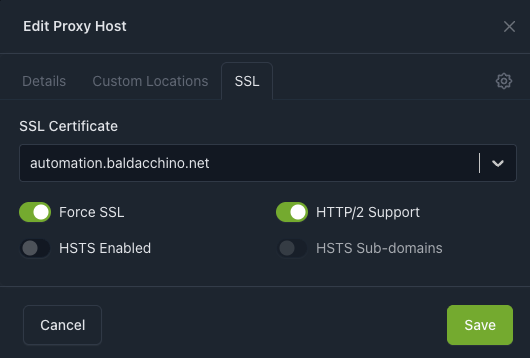
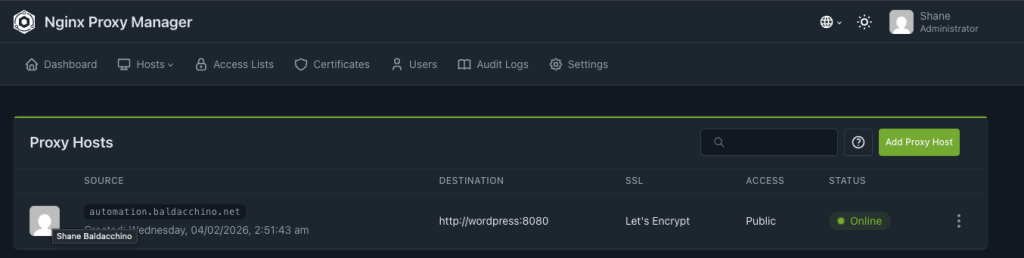
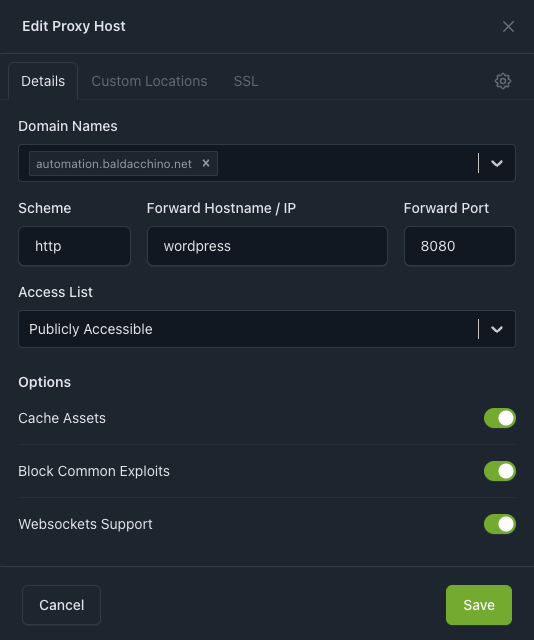
Nginx Proxy Manager, Unraid Docker Tab & Network Configuration
Performance & Caching
This architecture with SSD-backed storage will comfortably scale to 10,000 users per day. I say this from operational experience running this stack. Beyond that threshold you want to start thinking about a CDN (Cloudflare, AWS CloudFront) to offload static assets (images, CSS, JS) to edge nodes and an in-memory cache layer (Redis or Memcached) to reduce database queries on cache misses. Adding a Redis container to this compose stack is trivial, but for a blog serving under 10,000 users per day, it is unnecessary overhead.
The bigger performance lever is page caching. I use WP Super Cache configured to compile pages to static HTML on a cron schedule (Preload Mode) rather than on first request. This is an important distinction. With preload on a cron schedule, pages are compiled to .html files in the background on a timed interval. Every visitor, whether they are the first or the ten thousandth, gets a pre-compiled static HTML file served directly by the web server. There is no PHP execution on the critical path. There is no database query. The web server reads a flat file from disk (from SSD in my case) and sends it down the wire.
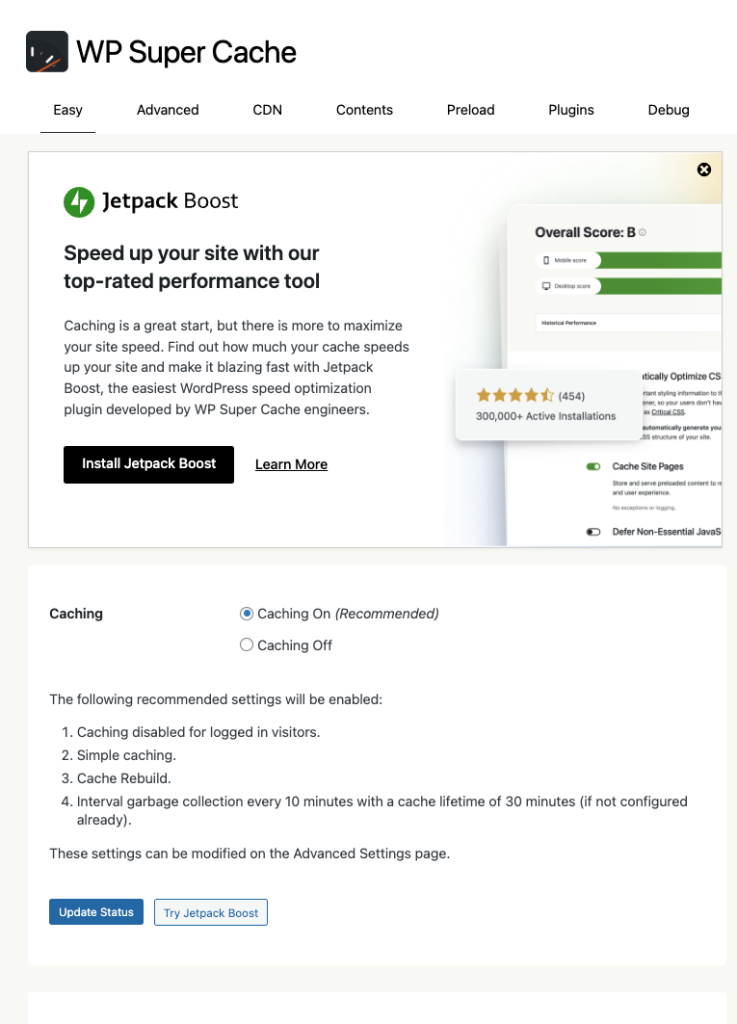
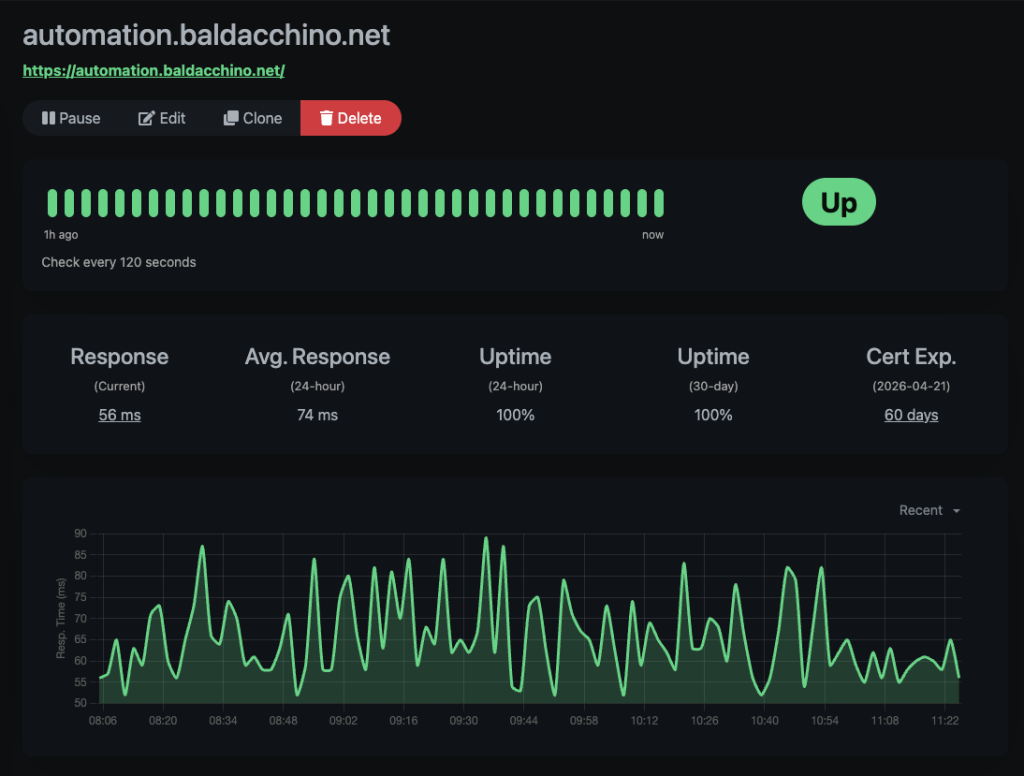
I run Uptime Kuma locally to monitor various ‘things’. My Time To First Byte (TTFB) of approximately 75ms when measured localy is very respectable and the site is very snappy. Your TTFB is essentially that 75ms plus the network component, the time it takes for the request to travel from the client to my server and back. The server-side processing time is negligible because there is nothing to process as I minimise in this setup the calls to my database.
I know I have issues, but I dont really care. The payload due to my high resolution images is heavy. Most pages are megabytes in size.
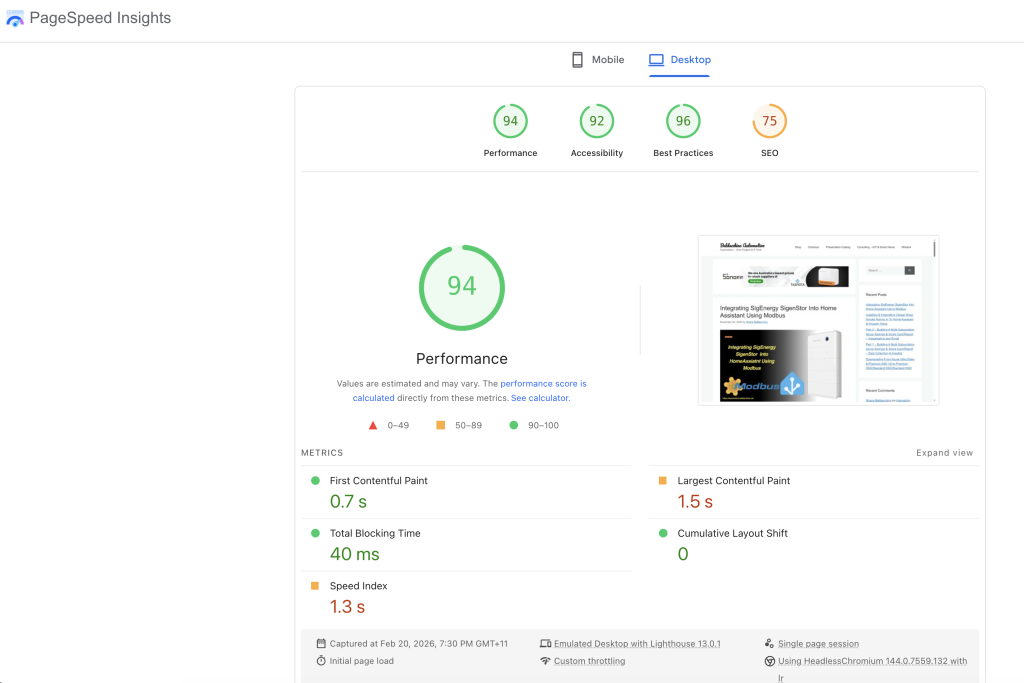
But with Google Page Speed Analytics giving 94 for performance, its not something I am going to worry about given most people have plenty of bandwidth.
Backup Strategy
Quickly want to touch on backups as its important.
I backup a few ways this website.
On the database side, I backup MariaDB database daily using mariadb-dump executed from a bash script on the Unraid host docker container. The dump is written to my SSD pool and then synced to Amazon S3 with S3 Versioning enabled on the bucket. Every time the backup syncs, S3 retains the previous versions of every object. This means I can restore the database to any previous point in time, not just the latest backup. This is kind of a safety net for me. Lambda rotates out the last 30 versions.
The script dumps the WordPress database from the MariaDB container, the docker exec command pushed the .sql file to the local file system. It then uses the AWS CLI Docker image to sync the entire appdata directory to S3, excluding the live MariaDB data directory (because that is what the dump is for). Both steps have error handling that fires an Unraid notification if anything fails.
#!/bin/bash
# WordPress Database Backup and S3 Sync Script

# Dump WordPress database
docker exec mariadb_wp bash -c "mariadb-dump \
  -u root -p'xxxxxxx' \
  --single-transaction \
  --routines \
  --triggers \
  wordpress" > /mnt/ssd_pool/appdata/wordpress/db_backup.sql

if [ $? -ne 0 ]; then
  /usr/local/emhttp/webGui/scripts/notify \
    -e "Unraid" \
    -s "WordPress DB Dump Failed" \
    -d "mysqldump exited with error" \
    -i "alert"
  exit 1
fi

# Sync to S3, excluding MariaDB data directory
docker run --rm \
  -v /mnt/ssd_pool/appdata:/data \
  -v /boot/config/aws:/root/.aws \
  amazon/aws-cli \
  s3 sync /data s3://baldacchino-unraid-private/ssd_pool/appdata \
    --delete \
    --exact-timestamps \
    --exclude "wordpress/db/*" \
    --region us-east-1

STATUS=$?
if [ $STATUS -ne 0 ]; then
  /usr/local/emhttp/webGui/scripts/notify \
    -e "Unraid" \
    -s "S3 Sync Failed" \
    -d "AWS sync exited with code $STATUS" \
    -i "alert"
  exit 1
fi
A few things to note on this script.
The --single-transaction flag is critical. It uses a consistent snapshot via InnoDB’s MVCC so the dump is taken without locking tables. This means your site continues to serve traffic while the backup runs. Without this flag, mariadb-dump takes a global read lock and your site hangs until the dump completes.
The --exclude "wordpress/db/*" on the S3 sync is intentional. The live MariaDB data directory (/var/lib/mysql mapped to the host) contains InnoDB data files, redo logs and binary logs that are not safe to copy while the database is running. That is why I use SQL dump is for. The dump is a consistent, portable representation of the database. The S3 sync captures everything else: the WordPress files, the Nginx Proxy Manager configuration, the Let’s Encrypt certificates and the SQL dump itself.
The --delete flag ensures S3 mirrors the local state. If I remove an old plugin or theme locally, it gets removed from S3 on the next sync. Combined with S3 versioning, deleted objects are not actually lost, they become non-current versions that I can restore if needed.
The AWS CLI runs as a Docker container rather than being installed on the Unraid host. The AWS credentials are mounted from /boot/config/aws which persists across Unraid reboots (the boot drive is the only persistent storage on Unraid outside of the array).
This gives me a 3-2-1 backup strategy: 3 copies of the data, on 2 different media types, with 1 copy offsite.
| Copy 1 | Live data on Unraid SSD array |
| Copy 2 | SQL dump on Unraid SSD pool (separate from live MariaDB data) |
| Copy 3 | Updraft Plus (Plugin to SATA pool) |
| Copy 4 | S3 with versioning enabled (offsite, us-east-1) |
The database is the most critical asset. WordPress files can be re-downloaded. Plugins can be re-installed. Themes can be re-applied. But my posts, your comments, take a good 8 hours typically to author. The database is my backup.
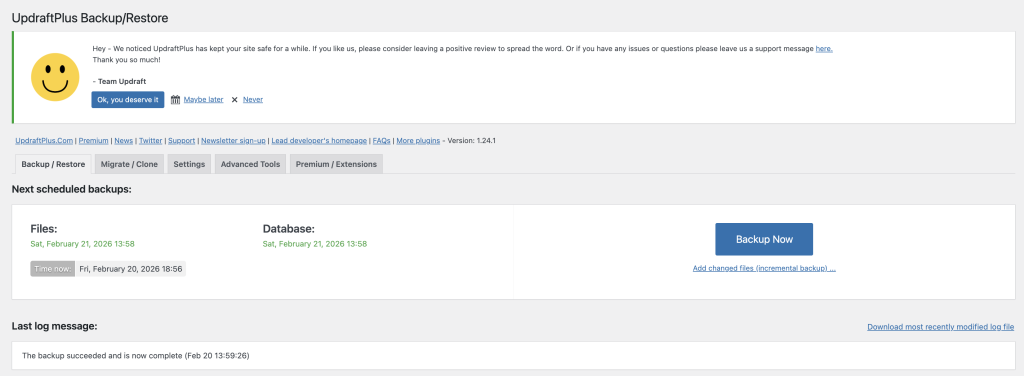
I also make use of Updraft Plus, its a simple plugin which in addition to backing up the file system in Unraid, I get a handy archive. An additional layer on insurance.
If something goes wrong I can restore the database from S3 versioning to any previous backup point and have a working site within minutes.
Summary
WordPress hosting is like any other architectural challenge you face. How much control do you want versus how much you want to manage. Look at the tables
WordPress.com is the lowest effort option. Zero infrastructure management, automatic everything, lowest opex. If you do not care about what is under the hood, it is a solid platform. But its also very expensive
Shared hosting is cheap and easy but you sacrifice control over PHP versions, performance consistency and security patching cadence. A VPS gives you OS-level control but you are still sharing underlying hardware resources with other tenants. NAS platforms like Synology and QNAP offer a polished self-hosting experience but lock you in to their software release schedule and often leave you running outdated packages. Local enterprise gear gives you everything, total control, total performance, total isolation, but demands you own the full stack including the hardware, power, cooling and connectivity.
Regardless of which platform you choose, if you have the option, deploy with Docker Compose. The separation of binaries from data, the simplicity of two command upgrades, the reproducibility of a declarative YAML file, the isolation between services and the ability to independently version each component of the stack make it the right approach for WordPress in 2025.
Pair it with WP Super Cache in preload mode compiling to static HTML, a solid 3-2-1 backup strategy and SSD-backed storage and you have a WordPress platform that is fast, maintainable and resilient.
This blog has been on shared hosting, a VPS, AWS, a Raspberry Pi and now Docker Compose on Unraid. After 22 years and many platforms, this is the stack I would recommend to anyone who wants to self-host WordPress with confidence. If you resonate with the builder mentality, this is the way.